 5:25
5:25Summary. GoHighLevel's form conditional logic gives you three post-submit actions to choose from: redirect to a URL, display a custom message, or disqualify the lead. Each action is governed by one or more conditions you define, such as a dropdown answer or a numeric threshold from a number field. Multiple conditions on a single rule are joined by AND or OR logic, and you can set up several independent rules on one form so different segments of respondents each get the right next step.
What you will learn
- Set up conditional redirect rules that send qualified leads to a booking page
- Display a custom thank-you or rejection message based on form answers
- Use the Disqualify Lead action to filter out low-fit contacts automatically
- Combine multiple field conditions with AND or OR logic on a single rule
- Use a number field and a dropdown together in one conditional rule
Steps
Open the form and add the fields you will test
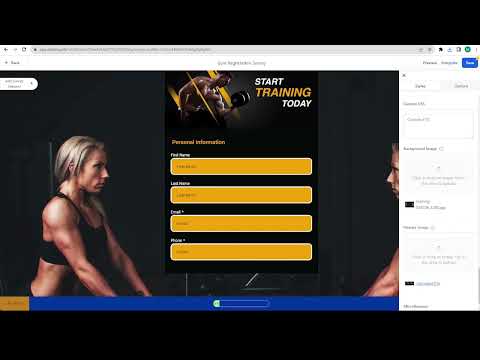
In Sites > Forms > Builder, open the form. Add the fields whose answers will drive the logic, such as a dropdown for a yes/no question or a number field for a score.
Open the conditional logic panel
Look for the Conditional Logic tab or section within the form settings. This is where all branch rules are created.
Create a redirect rule for qualified leads
Click to add a new rule. Set the condition to match your qualification criteria, for example homeowner equals Yes AND lead score is greater than 7. Choose Redirect to URL as the action and paste the booking page link.
Add an AND condition to tighten the rule
Inside the same rule, click the option to add another condition. Each additional condition narrows who triggers that outcome. All conditions in the rule must be true at once.
Create a disqualify rule for low-fit leads
Add a second rule. Set conditions for contacts you do not want to pursue, such as homeowner equals No AND lead score less than 6. Choose Disqualify Lead as the action.
Create a custom message rule for a middle tier
Add a third rule for contacts who are not disqualified but also not ready for a call. Set the condition and choose Display Custom Message, then write a short, helpful response.
Preview the form and test each path
Click Preview and fill out the form with values that should trigger each rule. Confirm the right outcome fires for every scenario before publishing.
Tips
- Put your most specific rules first. GoHighLevel evaluates them in order and stops at the first match.
- A number field lets you capture a numeric score and use greater-than or less-than conditions, which is much more flexible than a dropdown alone.