RocketLauncher AI

Forms & Surveys

How to Create a Stylized Survey in GoHighLevel

By Marnix Geerkens. Published 2023-10-10. Updated 2026-06-02.

GoHighLevel surveys now include a footer section with progress indicators, sticky positioning, and full color control so your survey looks polished and on-brand from the first slide to the last. Start from a pre-built template, enable the new footer option in settings, and adjust colors to match your brand without touching any code.

Watch it, then build it

Get the full platform free for 30 days

That walkthrough runs on GoHighLevel. Start it free through RocketLauncher and you get 30 days instead of the usual 14, the whole platform unlocked, plus our setup help and a community of thousands of builders in 47+ countries.

30 days, not 14Full platform, nothing held backFree community and setup help

We earn a referral commission if you keep GoHighLevel after the trial. It never changes your price.

Summary. GoHighLevel's survey builder ships with updated customization tools that go well beyond basic field arrangement. The new footer section shows respondents how far along they are, either as a page count or a percentage, and sticks to the survey content as they scroll. Background images, custom button styles, and adjustable font sizes let you build a survey that fits any brand without hiring a designer. Starting from a template cuts the setup time to minutes.

What you will learn

  • Start a survey from a pre-built template to save setup time
  • Enable and configure the new footer with progress display options
  • Set footer and button colors to match your brand
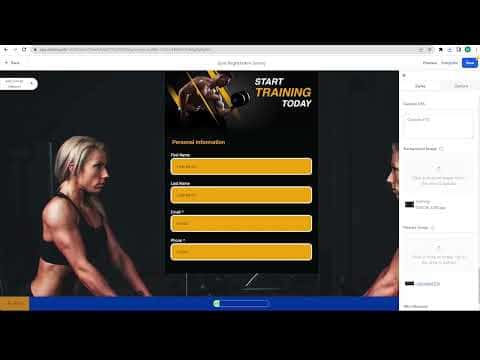
  • Add a background image for stronger visual impact
  • Control button style, weight, and size from the right-side panel
  • Preview the survey in real time before publishing

Steps

  1. Navigate to the survey builder

    In your sub-account, click Sites in the left menu, then select Surveys and click Builder.

  2. Create a new survey from a template

    Click Add Survey in the top right. Choose From Template, browse the available designs, and select one that fits your audience. The builder loads with the template's questions already in place.

  3. Enable the new footer

    In the right-side settings panel, scroll down to the Footer section. Toggle on Enable New Footer to reveal the expanded customization options.

  4. Configure the footer display

    Choose whether to show a page count (1 of 4) or a completion percentage. Toggle Stick to Survey to attach the footer directly to the survey content rather than floating at the bottom of the viewport.

  5. Set footer and button colors

    Adjust the text color and the button colors for both the Previous and Next buttons. Copy a hex value from elsewhere in your design if you want an exact match.

  6. Add a background image

    Locate the background image option in the settings panel. Upload an image from your files. Adjust the height and positioning settings to control how it appears behind the survey content.

  7. Adjust button style and typography

    Set the button type to text only, arrows only, or both. Increase or reduce the font size and button height until the layout looks right on the preview.

  8. Preview and save

    Click Preview and step through every slide to confirm progress indicators, colors, and styling all look correct. Click Save when satisfied.

Tips

  • A progress indicator reduces drop-off. People are less likely to quit when they can see they are almost done.
  • Keep your brand's primary color on the Next button and a neutral tone on Previous. It visually guides respondents forward.
Related tutorials

How To Track Form Submissions in HighLevel
How To Track Form Submissions in HighLevel5:21 · Forms & Surveys
Creating Interactive Quizzes to Tailor Your Audience's Experience
Creating Interactive Quizzes to Tailor Your Audience's Experience9:35 · Forms & Surveys
How to Use the Math Calculations Feature in HighLevel Forms and Surveys
How to Use the Math Calculations Feature in HighLevel Forms and Surveys3:21 · Forms & Surveys
How to Quickly Add and Edit Custom Fields in Forms and Surveys
How to Quickly Add and Edit Custom Fields in Forms and Surveys1:56 · Forms & Surveys
How To Use the Quiz Template Library
How To Use the Quiz Template Library1:42 · Forms & Surveys
How To Set Up a Personality Style Quiz in HighLevel
How To Set Up a Personality Style Quiz in HighLevel8:58 · Forms & Surveys

Watch it, then build it

Get the full platform free for 30 days

30 days, not 14Full platform, nothing held backFree community and setup help

Frequently asked questions

Where is the new footer option for GoHighLevel surveys?

In the survey builder, scroll down in the right settings panel to find the Footer section and toggle it on.

Can I show a progress percentage instead of a page count?

Yes. The footer settings let you switch between page count and percentage display.

Do stylized surveys still work as lead capture tools?

Yes. All standard field types and submission handling work exactly the same regardless of styling.

Can I start a survey from scratch instead of a template?

Yes. Choose Start From Scratch in the new survey dialog if you prefer to build every element yourself.

Does the background image affect survey load speed?

Keep images compressed and appropriately sized. Large unoptimized images will slow the survey, which increases drop-off.

Back to all Forms & Surveys tutorials