 3:49
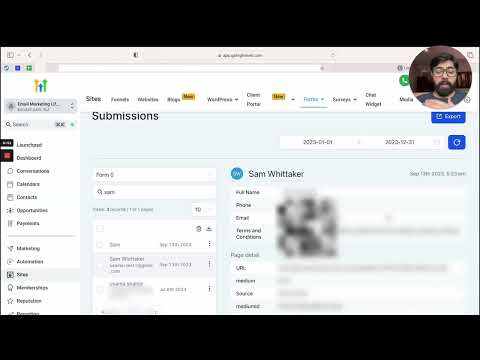
3:49Resumen. GoHighLevel's survey builder ships with updated customization tools that go well beyond basic field arrangement. The new footer section shows respondents how far along they are, either as a page count or a percentage, and sticks to the survey content as they scroll. Background images, custom button styles, and adjustable font sizes let you build a survey that fits any brand without hiring a designer. Starting from a template cuts the setup time to minutes.
Lo que aprenderás
- Start a survey from a pre-built template to save setup time
- Enable and configure the new footer with progress display options
- Set footer and button colors to match your brand
- Add a background image for stronger visual impact
- Control button style, weight, and size from the right-side panel
- Preview the survey in real time before publishing
Pasos
Navigate to the survey builder
In your sub-account, click Sites in the left menu, then select Surveys and click Builder.
Create a new survey from a template
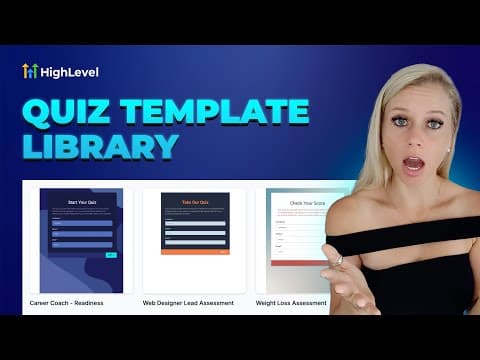
Click Add Survey in the top right. Choose From Template, browse the available designs, and select one that fits your audience. The builder loads with the template's questions already in place.
Enable the new footer
In the right-side settings panel, scroll down to the Footer section. Toggle on Enable New Footer to reveal the expanded customization options.
Configure the footer display
Choose whether to show a page count (1 of 4) or a completion percentage. Toggle Stick to Survey to attach the footer directly to the survey content rather than floating at the bottom of the viewport.
Set footer and button colors
Adjust the text color and the button colors for both the Previous and Next buttons. Copy a hex value from elsewhere in your design if you want an exact match.
Add a background image
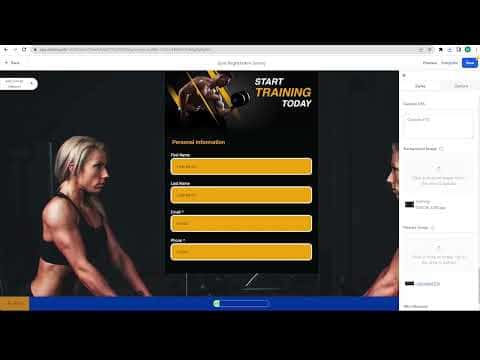
Locate the background image option in the settings panel. Upload an image from your files. Adjust the height and positioning settings to control how it appears behind the survey content.
Adjust button style and typography
Set the button type to text only, arrows only, or both. Increase or reduce the font size and button height until the layout looks right on the preview.
Preview and save
Click Preview and step through every slide to confirm progress indicators, colors, and styling all look correct. Click Save when satisfied.
Consejos
- A progress indicator reduces drop-off. People are less likely to quit when they can see they are almost done.
- Keep your brand's primary color on the Next button and a neutral tone on Previous. It visually guides respondents forward.