RocketLauncher AI

Forms & Surveys

How to Track Form Submissions in GoHighLevel

By Marnix Geerkens. Published 2023-09-22. Updated 2026-06-02.

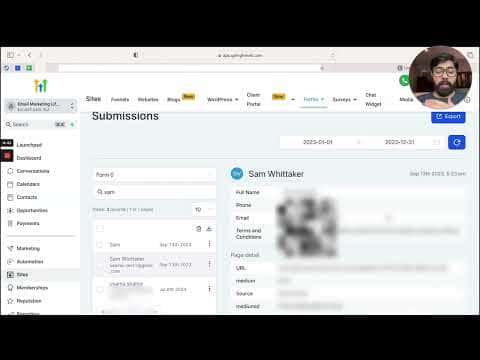
GoHighLevel keeps every form submission in one place under Sites > Forms > Submissions. You can filter by form, date range, or search by name, email, or phone to find a specific contact instantly. Each submission record shows the fields the person filled in plus UTM tracking data so you can trace which ad or campaign sent the lead.

Watch it, then build it

Get the full platform free for 30 days

That walkthrough runs on GoHighLevel. Start it free through RocketLauncher and you get 30 days instead of the usual 14, the whole platform unlocked, plus our setup help and a community of thousands of builders in 47+ countries.

30 days, not 14Full platform, nothing held backFree community and setup help

We earn a referral commission if you keep GoHighLevel after the trial. It never changes your price.

Summary. The Submissions view inside GoHighLevel's Forms section gives a full history of everyone who has filled out any form in the account. Filtering by form and date narrows the list quickly, and the search bar finds an individual contact without paging through hundreds of rows. Each entry links directly to the contact's record, and UTM parameters embedded in the source data reveal which campaign, ad set, or creative produced the conversion. Submissions can also be exported to CSV for reporting outside the platform.

What you will learn

  • Open form submissions at Sites > Forms > Submissions
  • Filter submissions by form name and by date range
  • Search by name, email, or phone to locate a specific contact
  • Read UTM source data to identify which ad drove each lead
  • Jump from a submission to the full contact record in one click
  • Export all submission data to CSV for external reporting

Steps

  1. Open form submissions

    Click Sites in the left navigation, then under Forms click Submissions.

  2. Select the form you want to review

    Use the dropdown on the left to pick a specific form. You can also filter for Facebook lead forms if your page is connected.

  3. Set a date range

    Use the pre-built options on the right side, such as Last 7 Days or This Month, or pick a custom start and end date and click Confirm.

  4. Search for a specific contact

    Type a name, email, or phone number into the search field to find that person's submission without scrolling through the full list.

  5. Read the submission detail

    Click any row to see the form answers on the right side. Below the contact fields you will find page detail data including UTM source, medium, campaign, and event IDs.

  6. Open the full contact record

    Click the contact's avatar to go straight to their contact card, where you can see the same source data alongside their full activity history.

  7. Export submissions to CSV

    Use the export option to download all filtered submissions as a CSV file for use in a spreadsheet or reporting tool.

Tips

  • Set up UTM parameters on every ad and campaign link before traffic starts. The submission record captures them automatically, but only if the URL carried them in the first place.
  • Facebook lead forms sync automatically once your Facebook page is connected. No separate export is needed.

Related tutorials

How To Create A Stylized Survey
How To Create A Stylized Survey3:49 · Forms & Surveys
Creating Interactive Quizzes to Tailor Your Audience's Experience
Creating Interactive Quizzes to Tailor Your Audience's Experience9:35 · Forms & Surveys
How to Use the Math Calculations Feature in HighLevel Forms and Surveys
How to Use the Math Calculations Feature in HighLevel Forms and Surveys3:21 · Forms & Surveys
How to Quickly Add and Edit Custom Fields in Forms and Surveys
How to Quickly Add and Edit Custom Fields in Forms and Surveys1:56 · Forms & Surveys
How To Use the Quiz Template Library
How To Use the Quiz Template Library1:42 · Forms & Surveys
How To Set Up a Personality Style Quiz in HighLevel
How To Set Up a Personality Style Quiz in HighLevel8:58 · Forms & Surveys

Watch it, then build it

Get the full platform free for 30 days

30 days, not 14Full platform, nothing held backFree community and setup help

Frequently asked questions

Where do I find form submissions in GoHighLevel?

Go to Sites, then Forms, then Submissions inside your sub-account.

Can I see which ad sent a particular lead through a form?

Yes, if the ad link includes UTM parameters the submission record will show them.

Can I search for a contact by phone number in the submissions view?

Yes. The search bar accepts name, email, or phone number.

Can I export form submission data from GoHighLevel?

Yes. Use the export option to download filtered submissions as a CSV file.

Do Facebook lead form submissions appear in GoHighLevel automatically?

Yes, once your Facebook page is connected the leads sync without any manual export.

Back to all Forms & Surveys tutorials