 5:21
5:21Resumo. The Submissions view inside GoHighLevel's Forms section gives a full history of everyone who has filled out any form in the account. Filtering by form and date narrows the list quickly, and the search bar finds an individual contact without paging through hundreds of rows. Each entry links directly to the contact's record, and UTM parameters embedded in the source data reveal which campaign, ad set, or creative produced the conversion. Submissions can also be exported to CSV for reporting outside the platform.
O que você vai aprender
- Open form submissions at Sites > Forms > Submissions
- Filter submissions by form name and by date range
- Search by name, email, or phone to locate a specific contact
- Read UTM source data to identify which ad drove each lead
- Jump from a submission to the full contact record in one click
- Export all submission data to CSV for external reporting
Passos
Open form submissions
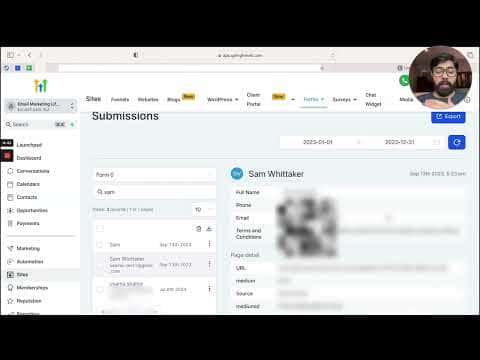
Click Sites in the left navigation, then under Forms click Submissions.
Select the form you want to review
Use the dropdown on the left to pick a specific form. You can also filter for Facebook lead forms if your page is connected.
Set a date range
Use the pre-built options on the right side, such as Last 7 Days or This Month, or pick a custom start and end date and click Confirm.
Search for a specific contact
Type a name, email, or phone number into the search field to find that person's submission without scrolling through the full list.
Read the submission detail
Click any row to see the form answers on the right side. Below the contact fields you will find page detail data including UTM source, medium, campaign, and event IDs.
Open the full contact record
Click the contact's avatar to go straight to their contact card, where you can see the same source data alongside their full activity history.
Export submissions to CSV
Use the export option to download all filtered submissions as a CSV file for use in a spreadsheet or reporting tool.
Dicas
- Set up UTM parameters on every ad and campaign link before traffic starts. The submission record captures them automatically, but only if the URL carried them in the first place.
- Facebook lead forms sync automatically once your Facebook page is connected. No separate export is needed.