Workflows & Automation
How to Read GoHighLevel Workflow Trigger Stats
By Marnix Geerkens. Published 2026-02-10. Updated 2026-06-02.
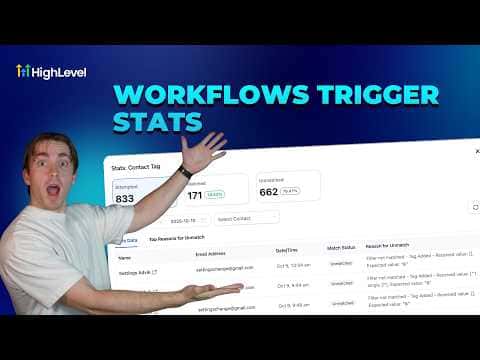
The trigger stats view inside GoHighLevel's workflow builder shows how many contacts attempted a workflow, how many matched the trigger filters, and how many were turned away and why. This makes it straightforward to see whether your filters are working correctly or whether contacts are failing a condition you did not expect.
Watch it, then build it
Get the full platform free for 30 days
That walkthrough runs on GoHighLevel. Start it free through RocketLauncher and you get 30 days instead of the usual 14, the whole platform unlocked, plus our setup help and a community of thousands of builders in 47+ countries.
30 days, not 14Full platform, nothing held backFree community and setup help
We earn a referral commission if you keep GoHighLevel after the trial. It never changes your price.
Summary. GoHighLevel's workflow trigger statistics screen breaks down every contact that touched a trigger into three groups: attempted, matched, and unmatched. Clicking Stats View inside the workflow builder opens a full table with timestamps, contact names, and the specific filter reason for any unmatched record. A top reasons panel summarizes the most common filter mismatches at a glance, making troubleshooting much faster than searching through contact logs manually.

Related tutorials
Watch it, then build it
Get the full platform free for 30 days
30 days, not 14Full platform, nothing held backFree community and setup help
Frequently asked questions
What does 'attempted' mean in trigger stats?
The contact entered the trigger check but may not have passed all filters.
Where do you find the trigger stats view?
Click Stats View on the left side inside the workflow builder.
Does a high unmatched rate mean something is broken?
Not always. Contacts that fail filters by design, such as the wrong status, are expected.