Workflows & Automation
How to Automate Payment Links with Order Submitted Triggers in GoHighLevel
By Marnix Geerkens. Published 2025-09-24. Updated 2026-06-02.
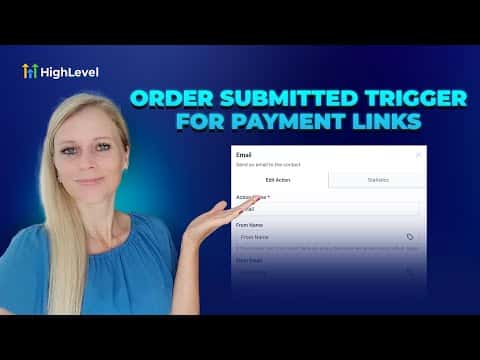
The Order Submitted trigger in GoHighLevel fires whenever a payment link purchase completes. You can filter by product, price point, or order source, which means you can run completely separate follow-up sequences for different offers without building multiple unrelated workflows. Confirmations, onboarding tasks, and team alerts all start the moment the payment goes through.
Watch it, then build it
Get the full platform free for 30 days
That walkthrough runs on GoHighLevel. Start it free through RocketLauncher and you get 30 days instead of the usual 14, the whole platform unlocked, plus our setup help and a community of thousands of builders in 47+ countries.
30 days, not 14Full platform, nothing held backFree community and setup help
We earn a referral commission if you keep GoHighLevel after the trial. It never changes your price.
Summary. GoHighLevel's Order Submitted trigger connects payment link purchases directly to workflow automations. Filters for global product, product price, and order source let you route different purchases into different communication paths. From there, any workflow action, such as a confirmation email, SMS, or an internal task assignment, fires automatically the moment a buyer completes checkout.
Related tutorials
Watch it, then build it
Get the full platform free for 30 days
30 days, not 14Full platform, nothing held backFree community and setup help
Frequently asked questions
Can I use this trigger for Stripe payment links?
Yes, the Order Submitted trigger works across GoHighLevel's supported payment processors.
How do I separate automations for two different product tiers?
Add a Global Product filter on each workflow and point each one at a different product.
What actions can I add after the trigger fires?
Email, SMS, WhatsApp, task assignments, and pipeline updates are all available.