RocketLauncher AI

Getting Started & General

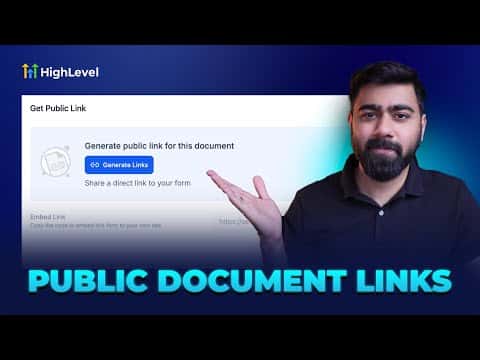
How to Create and Share Public Documents and Contracts in GoHighLevel

By Marnix Geerkens. Published 2025-08-29. Updated 2026-06-02.

GoHighLevel lets you build signable contracts and share them via a public link, removing the need for a separate e-signature platform. Go to Payments, then Documents and Contracts, and create a public document. Add text, signature, name, and date fields, publish the document, and share the generated link with anyone who needs to sign.

Watch it, then build it

Get the full platform free for 30 days

That walkthrough runs on GoHighLevel. Start it free through RocketLauncher and you get 30 days instead of the usual 14, the whole platform unlocked, plus our setup help and a community of thousands of builders in 47+ countries.

30 days, not 14Full platform, nothing held backFree community and setup help

We earn a referral commission if you keep GoHighLevel after the trial. It never changes your price.

Summary. GoHighLevel's public document feature handles online contract signing without third-party tools. You build the document in a drag-and-drop editor, add the fields you want contacts to fill in (name, signature, date), then publish to generate a shareable URL. Anyone who opens the link fills in their details and signs. All completed responses appear in the Public Documents tab under Documents and Contracts.

Steps

  1. Open the template editor

    Go to Payments in the left sidebar, select Documents and Contracts, then click Templates. Hit New and choose Create Public Document.

  2. Add content and fields

    Drag text blocks for your contract copy, then drag in a name field, a signature field, and a date field. Set each field to be filled by the contact.

  3. Publish and copy the link

    Name the document, save it, then click Publish. GoHighLevel generates a public URL you can copy and share with customers.
Related tutorials

Did You Know You Can Centralize Task Management in HighLevel?
Did You Know You Can Centralize Task Management in HighLevel?4:09 · Getting Started & General
How To Use Custom Object Associations in HighLevel for Enhanced Data Management
How To Use Custom Object Associations in HighLevel for Enhanced Data Management2:23 · Getting Started & General
Did You Know AI Can Transfer Chats to a Human When Needed?
Did You Know AI Can Transfer Chats to a Human When Needed?6:39 · Getting Started & General
How To Set Up Internal Notifications in HighLevel
How To Set Up Internal Notifications in HighLevel10:28 · Getting Started & General
How To Use Element Templates in HighLevel for Consistent Designs
How To Use Element Templates in HighLevel for Consistent Designs2:22 · Getting Started & General
How To Use Unique Fields in HighLevel Custom Objects
How To Use Unique Fields in HighLevel Custom Objects4:41 · Getting Started & General

Watch it, then build it

Get the full platform free for 30 days

30 days, not 14Full platform, nothing held backFree community and setup help

Frequently asked questions

Where do completed signatures appear?

Under Documents and Contracts, open the Public Documents tab to see all responses.

Can the same link be used by multiple signers?

Yes, the public link is accessible to anyone you share it with.

Back to all Getting Started & General tutorials