Getting Started & General
How to Use Custom Object Associations in GoHighLevel
By Marnix Geerkens. Published 2026-01-15. Updated 2026-06-02.
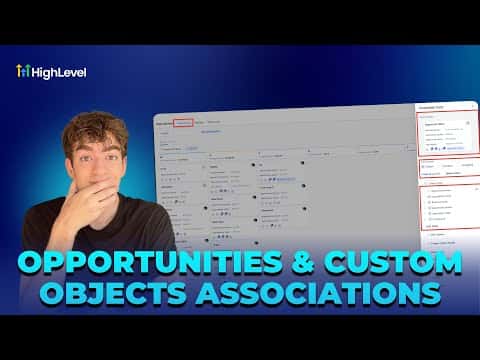
GoHighLevel custom object associations let you link a contact or opportunity to any structured data record you define, such as an event, property, or vehicle. Instead of burying details in notes, you attach a properly typed record directly to the deal or contact. The relationship is visible on the opportunity card and filterable in list views.
Watch it, then build it
Get the full platform free for 30 days
That walkthrough runs on GoHighLevel. Start it free through RocketLauncher and you get 30 days instead of the usual 14, the whole platform unlocked, plus our setup help and a community of thousands of builders in 47+ countries.
30 days, not 14Full platform, nothing held backFree community and setup help
We earn a referral commission if you keep GoHighLevel after the trial. It never changes your price.
Summary. Custom object associations in GoHighLevel connect CRM opportunities to user-defined data structures. After creating a custom object in Settings, you add individual records to it, then open an opportunity card and link it to the relevant record via the Associated Objects section. A manageable fields toggle lets you display or hide the association column in your pipeline view so teams can see at a glance which deals are connected to which records.
Related tutorials
Watch it, then build it
Get the full platform free for 30 days
30 days, not 14Full platform, nothing held backFree community and setup help
Frequently asked questions
Where do I create a custom object in GoHighLevel?
Go to Settings, scroll to Objects, and click the Create button.
How do I link a contact to a custom object record?
Open the opportunity card, find Associated Objects, and select the record.
Can I see the association in the pipeline board view?
Yes, use Manage Fields to toggle the association column on or off.