Getting Started & General
How to Centralize Task Management in GoHighLevel
By Marnix Geerkens. Published 2026-01-29. Updated 2026-06-02.
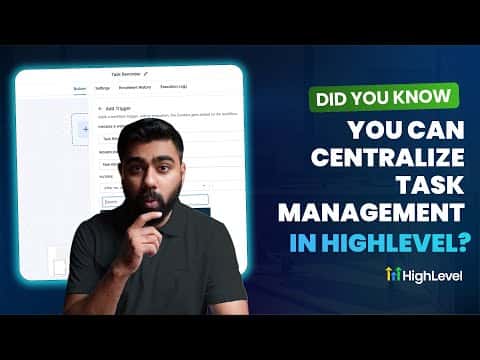
GoHighLevel keeps tasks inside the same platform where your conversations, leads, and automations live. Team members can view assigned tasks, see due dates, and jump straight to the related contact without switching apps. Tasks can also be created automatically inside workflows, so no follow-up falls through the cracks.
Watch it, then build it
Get the full platform free for 30 days
That walkthrough runs on GoHighLevel. Start it free through RocketLauncher and you get 30 days instead of the usual 14, the whole platform unlocked, plus our setup help and a community of thousands of builders in 47+ countries.
30 days, not 14Full platform, nothing held backFree community and setup help
We earn a referral commission if you keep GoHighLevel after the trial. It never changes your price.
Summary. GoHighLevel's task management puts to-do items next to the contacts and conversations they belong to. Each team member sees their assigned tasks with due dates, priority status, and a direct link to the relevant contact record. Workflows can trigger task creation automatically, for example when a lead responds to an outreach sequence, so urgent follow-ups get assigned the moment action is needed. Task reminders and triggers let you build longer sales-cycle follow-up chains as well.
Related tutorials
Watch it, then build it
Get the full platform free for 30 days
30 days, not 14Full platform, nothing held backFree community and setup help
Frequently asked questions
Where do team members find their assigned tasks?
Inside their GoHighLevel account under the Contacts task view.
Can tasks be created automatically by a workflow?
Yes, add an Add Task action to any workflow and set the assignee and due date.
Can I trigger automations based on task status?
Yes, use Task Reminder, Task Added, or Task Completed as workflow triggers.