RocketLauncher AI

Getting Started & General

How to Set Up Internal Notifications in GoHighLevel Workflows

By Marnix Geerkens. Published 2026-04-06. Updated 2026-06-02.

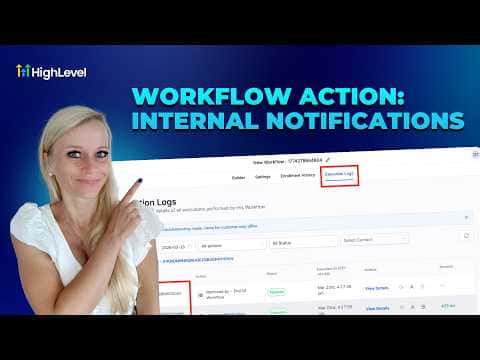
GoHighLevel workflows can notify team members via SMS, email, WhatsApp, or in-app push notification the moment a trigger fires. Add an Internal Notification action after any trigger or wait step, choose your channel and recipient (a specific user, the assigned user, or all users), write the message with or without AI, and save. Your team stays informed without you manually sending anything.

Watch it, then build it

Get the full platform free for 30 days

That walkthrough runs on GoHighLevel. Start it free through RocketLauncher and you get 30 days instead of the usual 14, the whole platform unlocked, plus our setup help and a community of thousands of builders in 47+ countries.

30 days, not 14Full platform, nothing held backFree community and setup help

We earn a referral commission if you keep GoHighLevel after the trial. It never changes your price.

Summary. Internal notifications in GoHighLevel workflows alert team members through four channels: SMS, email, WhatsApp, and in-app desktop or mobile push. Each channel has its own recipient options (specific user, assigned user, all users, or a custom number), message builder with custom value support, and a test send button so you can confirm delivery before going live. SMS and email notifications also support templates (snippets and email templates respectively), while WhatsApp requires pre-approved Meta templates.

Steps

  1. Open your workflow and set a trigger

    Go to Automations, then Workflows. Open or create a workflow and configure a trigger, such as Form Submitted or Appointment Booked.

  2. Add a wait step if needed

    If you want the notification delayed until after an event (like a webinar ending), add a Wait action and set the duration before the notification step.

  3. Add the Internal Notification action

    Click the plus icon, search for Internal Notification under Communications, and select it.

  4. Choose a channel and recipient

    Pick SMS, email, WhatsApp, or in-app notification from the dropdown. Then select who receives it: a specific user, the contact's assigned user, all users, or a custom number.

  5. Write the message and test

    Type your message, insert custom values such as contact first name, and optionally attach an image or URL. Use the Send Test button to verify it looks right before saving.
Related tutorials

Did You Know AI Can Transfer Chats to a Human When Needed?
Did You Know AI Can Transfer Chats to a Human When Needed?6:39 · Getting Started & General
How To Use Unique Fields in HighLevel Custom Objects
How To Use Unique Fields in HighLevel Custom Objects4:41 · Getting Started & General
How To Centralize Staff Scheduling in HighLevel
How To Centralize Staff Scheduling in HighLevel5:22 · Getting Started & General
How To Build Effective AI Knowledge Bases with HighLevel
How To Build Effective AI Knowledge Bases with HighLevel4:03 · Getting Started & General
Did You Know You Can Centralize Task Management in HighLevel?
Did You Know You Can Centralize Task Management in HighLevel?4:09 · Getting Started & General
How To Use Custom Object Associations in HighLevel for Enhanced Data Management
How To Use Custom Object Associations in HighLevel for Enhanced Data Management2:23 · Getting Started & General

Watch it, then build it

Get the full platform free for 30 days

30 days, not 14Full platform, nothing held backFree community and setup help

Frequently asked questions

Can I send internal notifications to multiple team members at once?

Yes, select All Users or add multiple specific users in the recipient field.

What is a snippet in the SMS notification context?

A snippet is a reusable SMS template created under Marketing then Snippets.

Do WhatsApp internal notifications require approval?

Yes, WhatsApp notifications use Meta-approved templates only.

Back to all Getting Started & General tutorials