 10:28
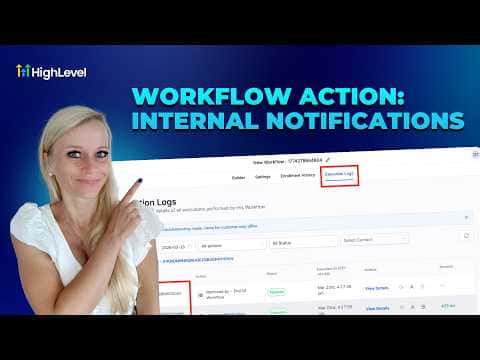
10:28概要. Internal notifications in GoHighLevel workflows alert team members through four channels: SMS, email, WhatsApp, and in-app desktop or mobile push. Each channel has its own recipient options (specific user, assigned user, all users, or a custom number), message builder with custom value support, and a test send button so you can confirm delivery before going live. SMS and email notifications also support templates (snippets and email templates respectively), while WhatsApp requires pre-approved Meta templates.
ステップ
Open your workflow and set a trigger
Go to Automations, then Workflows. Open or create a workflow and configure a trigger, such as Form Submitted or Appointment Booked.
Add a wait step if needed
If you want the notification delayed until after an event (like a webinar ending), add a Wait action and set the duration before the notification step.
Add the Internal Notification action
Click the plus icon, search for Internal Notification under Communications, and select it.
Choose a channel and recipient
Pick SMS, email, WhatsApp, or in-app notification from the dropdown. Then select who receives it: a specific user, the contact's assigned user, all users, or a custom number.
Write the message and test
Type your message, insert custom values such as contact first name, and optionally attach an image or URL. Use the Send Test button to verify it looks right before saving.