Getting Started & General
How to Use Element Templates in GoHighLevel Page Builder
By Marnix Geerkens. Published 2025-12-19. Updated 2026-06-02.
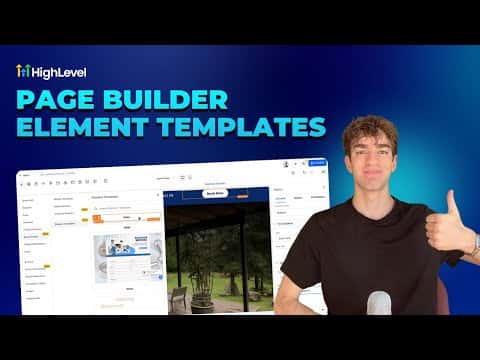
Element templates in GoHighLevel's page builder let you save any individual element, such as a button, image, or headline, and reuse it across funnels and websites with one click. Save once, drop anywhere. Universal templates go further by syncing changes automatically wherever the element is placed.
Watch it, then build it
Get the full platform free for 30 days
That walkthrough runs on GoHighLevel. Start it free through RocketLauncher and you get 30 days instead of the usual 14, the whole platform unlocked, plus our setup help and a community of thousands of builders in 47+ countries.
30 days, not 14Full platform, nothing held backFree community and setup help
We earn a referral commission if you keep GoHighLevel after the trial. It never changes your price.
Summary. GoHighLevel's page builder supports two types of saved elements: standard element templates (a saved copy you can reuse) and universal templates (account-wide elements that update everywhere when edited in one place). To save an element, click it in the builder and use the Save Element button in the left panel, or find it via the Layers panel. Saved elements appear under Saved Assets when you add a new section.

Related tutorials
Watch it, then build it
Get the full platform free for 30 days
30 days, not 14Full platform, nothing held backFree community and setup help
Frequently asked questions
What is the difference between an element template and a universal template?
Element templates are static copies; universal templates sync changes account-wide.
How do I reuse a saved element on a new page?
Click the plus button to add content, then open Saved Assets to find it.
Can I save any element type, not just buttons?
Yes, images, headlines, and any single builder element can be saved.