RocketLauncher AI

Email

How to Configure Email Replies in Mailgun for GoHighLevel

By Marnix Geerkens. Published 2020-02-04. Updated 2026-06-02.

For GoHighLevel to receive email replies inside Conversations, Mailgun needs a catch-all routing rule that forwards inbound messages back to GoHighLevel. Without this route, replies go nowhere and your contacts' responses are lost. You can add the route manually in Mailgun, or trigger GoHighLevel to create it automatically by re-saving your domain settings.

Watch it, then build it

Get the full platform free for 30 days

That walkthrough runs on GoHighLevel. Start it free through RocketLauncher and you get 30 days instead of the usual 14, the whole platform unlocked, plus our setup help and a community of thousands of builders in 47+ countries.

30 days, not 14Full platform, nothing held backFree community and setup help

We earn a referral commission if you keep GoHighLevel after the trial. It never changes your price.

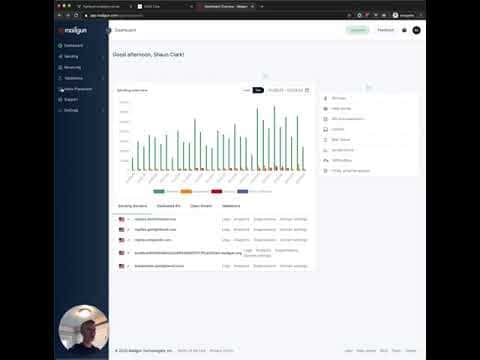
Summary. When a contact replies to an email sent through GoHighLevel via Mailgun, that reply needs a routing rule in Mailgun to find its way back into your GoHighLevel Conversations. This tutorial shows how to check whether the required catch-all route exists in your Mailgun account, what it should look like, and two ways to fix it if the route is missing: manually creating it in the Mailgun receiving section, or letting GoHighLevel recreate it by saving your domain settings at the agency level.

What you will learn

  • Why a Mailgun catch-all route is required for reply tracking in GoHighLevel
  • How to find and inspect the route in Mailgun's Receiving section
  • How to manually create the catch-all route if it is missing
  • How to use GoHighLevel to recreate the route automatically
  • What Mailgun plan level is required for inbound routing

Steps

  1. Check your Mailgun API key in GoHighLevel

    In your GoHighLevel agency account, go to Settings and open the Mailgun tab. Confirm your API key is entered and your sending domain is listed. If those are missing, replies cannot work regardless of routing.

  2. Log in to Mailgun and open Receiving

    In Mailgun, click Receiving in the left sidebar. If you see an upgrade prompt instead of a route list, you need to upgrade to at least the minimum paid plan before inbound routing is available.

  3. Look for the catch-all route

    The route you need is a catch-all type that forwards to a GoHighLevel inbound URL. If the route is present and the forward address matches, your reply tracking should be working.

  4. Option A: Create the route manually

    If the route is missing, click Create Route, choose catch-all as the match type, paste the GoHighLevel forwarding URL into the Forward field, and save.

  5. Option B: Let GoHighLevel recreate it

    Go back to GoHighLevel agency settings, open the Mailgun tab, toggle between domains to trigger the Save button to appear, and hit Save. GoHighLevel will push the catch-all route back into Mailgun automatically.

Tips

  • After setting up the route, send a test email from a contact record and reply to it from your personal inbox. Check GoHighLevel Conversations to confirm the reply appears.
Related tutorials

How To Use LC Email to Send from Multiple Domains
How To Use LC Email to Send from Multiple Domains5:01 · Email
How To Setup Mailgun Using Google Domains
How To Setup Mailgun Using Google Domains5:58 · Email
Setup Mailgun Inside HighLevel
Setup Mailgun Inside HighLevel2:33 · Email
How To Setup an LC Email Dedicated Domain
How To Setup an LC Email Dedicated Domain10:51 · Email
Building Emails In the HighLevel Drag & Drop Email Builder
Building Emails In the HighLevel Drag & Drop Email Builder6:23 · Email
How to Resubscribe After Unsubscribing from an Email List
How to Resubscribe After Unsubscribing from an Email List2:53 · Email

Watch it, then build it

Get the full platform free for 30 days

30 days, not 14Full platform, nothing held backFree community and setup help

Frequently asked questions

Which Mailgun plan do I need for reply routing?

At minimum the Mailgun Foundation plan (currently around $35 per month) is required.

Can I use the free Mailgun trial for reply routing?

No, the free trial does not include inbound routing features.

What does the catch-all route forward to?

It forwards to a GoHighLevel-provided URL that processes inbound messages into Conversations.

What if replies still don't appear in GoHighLevel after adding the route?

Confirm the forward URL in Mailgun matches exactly what GoHighLevel expects, and that your API key has inbound permissions.

Back to all Email tutorials