 2:33
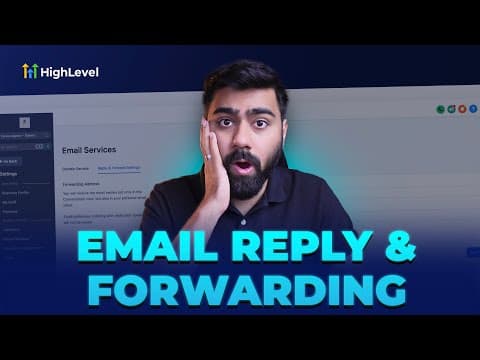
2:33Summary. Mailgun is the sending infrastructure but GoHighLevel is where you control which account uses which domain. This tutorial picks up after DNS setup is complete and shows the exact path to wire everything together: where to find the private API key in Mailgun, where to paste it in GoHighLevel at the agency level, how to assign the sending domain to a specific sub account, and how to configure reply forwarding so inbound email comes back to the right place.
What you will learn
- Where to find the private API key in your Mailgun account
- How to paste the API key at the GoHighLevel agency level
- How to assign a Mailgun domain to a specific sub account
- How reply forwarding works and how to set the forwarding address
Steps
Copy your Mailgun private API key
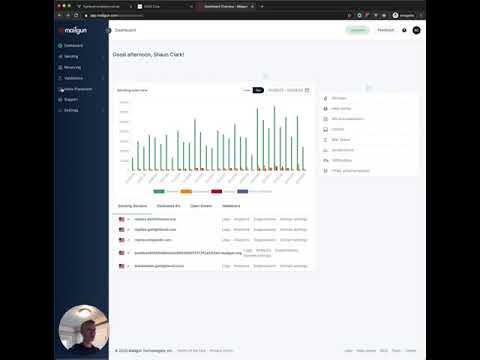
Log in to Mailgun, scroll to the Private API Key section in your account settings, and copy the key. Do not use the public validation key.
Paste the key in GoHighLevel agency settings
In GoHighLevel, go to your agency account, open Settings, and click the Mailgun tab. Paste the API key into the field and tab out of it to trigger the domain list to populate.
Select the sending domain at the agency level
From the domain dropdown that appears, select the subdomain you set up in Mailgun (for example, mg.yourdomain.com). Save the settings.
Switch into the sub account and set the domain
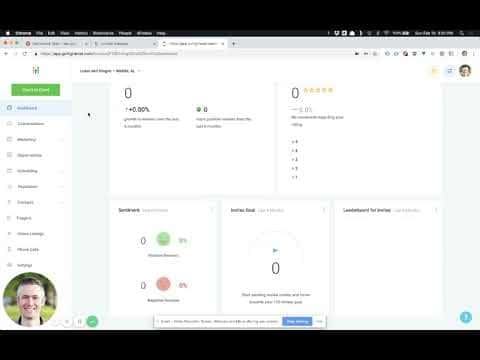
Use the account switcher to navigate into the sub account that should use this Mailgun domain. Go to Settings and open the bulk email settings at the top. Select the Mailgun domain from the dropdown to assign it to this account.
Configure the reply forwarding address
By default, GoHighLevel forwards a copy of inbound replies to the account's company email address. If you want replies to go to a different address instead, enter it in the forwarding address field. Save to apply.
Tips
- If the domain dropdown does not appear after pasting the API key, click out of the field and back in, or refresh the page and try again.
- The reply forwarding feature passes inbound email back through GoHighLevel, so the platform can log the reply and trigger workflow actions like stopping a campaign.