 5:58
5:58Summary. Google Domains handles DNS differently from some other registrars, particularly for MX records, which can trip up founders going through Mailgun setup for the first time. This tutorial walks through the complete process: creating a sending subdomain in Mailgun, adding all five required DNS records in Google Domains including the correct way to add both MX entries on a single record, verifying the domain in Mailgun, and wiring the API key into GoHighLevel so the sub account can send email through the new domain.
What you will learn
- How to create a sending subdomain in your Mailgun account
- Which five DNS records Mailgun requires and what each one does
- How Google Domains handles dual MX records differently from other registrars
- How to check DNS propagation and verify your domain in Mailgun
- How to copy the Mailgun API key into GoHighLevel and select the sending domain
Steps
Create the sending subdomain in Mailgun
In Mailgun, go to Sending and click Add New Domain. Enter a subdomain such as mg.yourdomain.com. Select US as the region even if you are based elsewhere, then click Add Domain. Mailgun will display the five DNS records you need to create.
Open DNS in Google Domains
In Google Domains, click Manage on your domain and open the DNS tab. Scroll to Custom Resource Records at the bottom. This is where you will add all five records.
Add the two TXT records
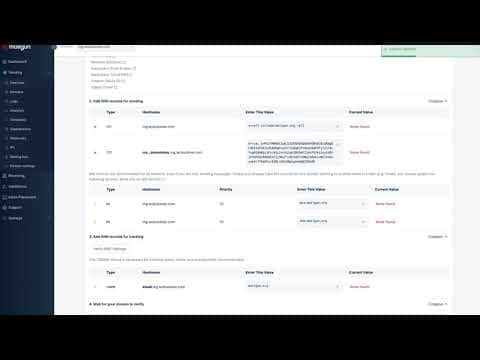
For the first TXT record, set the host name to mg (just the subdomain, not the full domain) and paste the full value from Mailgun. For the second TXT record, copy everything up to but not including your root domain from the Mailgun host name field, paste that as the host name, and paste the corresponding value. Save each one.
Add the MX records
Create an MX record with mg as the host name and paste the first MX value from Mailgun. Google Domains automatically sets priority to 10. For the second MX record, edit the one you just created and click the plus button to add the second entry rather than creating a separate MX record. Paste the second MX value and save.
Add the CNAME record
Copy the host name from Mailgun's CNAME row (everything up to your root domain), create a CNAME record in Google Domains with that as the host, and paste mailgun.org as the destination value.
Verify the domain in Mailgun
Return to Mailgun and click Verify DNS Settings. Records may not all turn green immediately if propagation is still in progress. Wait a few minutes and check again. All five should eventually show green check marks.
Add the API key to GoHighLevel
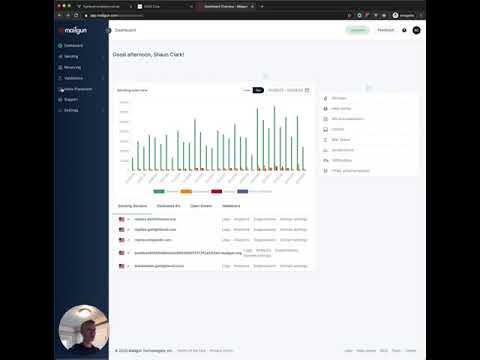
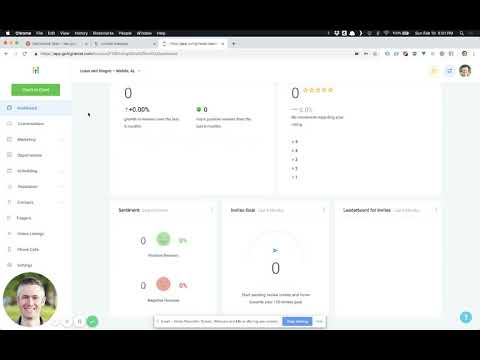
In Mailgun, go to your account initials in the top right and click API Keys. Click the eye icon to reveal your private API key and copy it. In GoHighLevel agency settings, open the Mailgun tab, paste the key, and select your new subdomain from the domain list. Save, and the sub account can now send via that domain.
Tips
- Google Domains requires both MX entries on a single MX record using the plus button, unlike some registrars that accept two separate MX records.
- If a CNAME is still pending after verifying, wait a few more minutes. CNAME propagation often lags behind TXT and MX records.