RocketLauncher AI

CRM, Contacts & Lead Gen

How to Customize the Add Contact Modal in GoHighLevel

By Marnix Geerkens. Published 2025-11-03. Updated 2026-06-02.

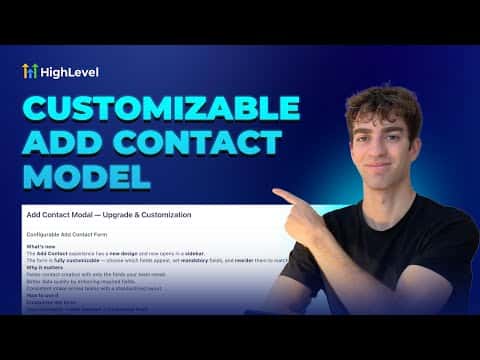
GoHighLevel's Add Contact modal slides in from the right side of the Contacts view and can be fully configured by sub-account admins. You choose which fields appear, the order they show up, and which ones are required before saving. Custom fields you have already created in Settings show up in the form builder, so every new contact record collects exactly the data your team needs from day one.

Watch it, then build it

Get the full platform free for 30 days

That walkthrough runs on GoHighLevel. Start it free through RocketLauncher and you get 30 days instead of the usual 14, the whole platform unlocked, plus our setup help and a community of thousands of builders in 47+ countries.

30 days, not 14Full platform, nothing held backFree community and setup help

We earn a referral commission if you keep GoHighLevel after the trial. It never changes your price.

Summary. The Add Contact modal in GoHighLevel uses a slide-out panel design that keeps you on the same page while adding a new record. Admins open the Customize Form option from the top right of the modal to toggle fields on or off, mark any as required, and drag them into order. Standard team members see the configured version of the form and cannot change the layout. Two save buttons, Save and Save and Add Another, make it practical to add several contacts in a row without reloading.

Steps

  1. Open Add Contact

    Go to Contacts and click Add Contact in the top right corner. The slide-out panel appears.

  2. Open the form customizer

    As a sub-account admin, click Customize Form in the top right corner of the modal.

  3. Manage and reorder fields

    Click Manage Fields to toggle individual fields on or off. Preview updates in real time on the right side.

  4. Add custom fields

    Click the three-dot menu and select Add Custom Fields. GoHighLevel sends you to the custom fields section of Settings where you can create a new field. It appears in the form builder immediately after saving.

  5. Save and use the form

    Click Save. All users in the sub account now see the updated form when they add a contact.

Related tutorials

How to Connect Notes to Contacts and Opportunities Easily
How to Connect Notes to Contacts and Opportunities Easily2:09 · CRM, Contacts & Lead Gen
How to Use Smart List 2.0 and List View in HighLevel
How to Use Smart List 2.0 and List View in HighLevel1:50 · CRM, Contacts & Lead Gen
How to Import Your Entire Shopify Store in Just a Few Clicks
How to Import Your Entire Shopify Store in Just a Few Clicks4:21 · CRM, Contacts & Lead Gen
How to Launch Your First Google Ads Search Campaign
How to Launch Your First Google Ads Search Campaign2:21 · CRM, Contacts & Lead Gen
How To Use HighLevel s Contact Features Like a Pro
How To Use HighLevel s Contact Features Like a Pro5:56 · CRM, Contacts & Lead Gen
How to Use Custom Fields in HighLevel Dashboards: A Step-by-Step Guide
How to Use Custom Fields in HighLevel Dashboards: A Step-by-Step Guide3:25 · CRM, Contacts & Lead Gen

Watch it, then build it

Get the full platform free for 30 days

30 days, not 14Full platform, nothing held backFree community and setup help

Frequently asked questions

Who can customize the Add Contact form layout?

Only sub-account admins with the appropriate permissions can edit the form.

What happens if I close the modal before saving?

GoHighLevel shows an unsaved changes warning so the data is not lost.

Can I add contacts in bulk using this modal?

The modal is for one contact at a time. Use Save and Add Another to move quickly through a list.

Back to all CRM, Contacts & Lead Gen tutorials