RocketLauncher AI

CRM, Contacts & Lead Gen

How to Import a Shopify Store into GoHighLevel

By Marnix Geerkens. Published 2025-08-22. Updated 2026-06-02.

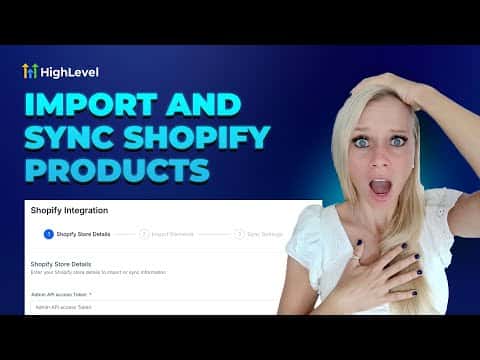
GoHighLevel connects directly to Shopify through an API token you generate inside your Shopify admin. Once connected, you choose what to bring over: products, collections, customers, orders, and transactions. Everything syncs into the GoHighLevel CRM so you can run marketing and follow-up from one place rather than toggling between two platforms.

Watch it, then build it

Get the full platform free for 30 days

That walkthrough runs on GoHighLevel. Start it free through RocketLauncher and you get 30 days instead of the usual 14, the whole platform unlocked, plus our setup help and a community of thousands of builders in 47+ countries.

30 days, not 14Full platform, nothing held backFree community and setup help

We earn a referral commission if you keep GoHighLevel after the trial. It never changes your price.

Summary. Migrating a Shopify store to GoHighLevel starts with creating a custom app in your Shopify admin, granting the right read scopes (orders, customers, products, inventory), and copying the API access token into GoHighLevel's Integrations settings. From there you select which data types to import and whether to enable ongoing sync for future orders. On Shopify's basic plan, only products and collections transfer. Higher Shopify plans unlock customer, order, and transaction imports.

Steps

  1. Create a custom app in Shopify

    In your Shopify admin, go to Settings, Apps and Sales Channels, then Develop Apps. Create a new app and give it a name.

  2. Set the required API scopes

    Under Admin API scopes, enable read_orders, read_customers, read_products, read_inventory, and the two API options. Save the configuration.

  3. Copy the access token

    Install the app, then click Reveal Token once and copy the token immediately. It only shows once.

  4. Connect the store in GoHighLevel

    Go to Settings, Integrations, find Shopify, and click Connect. Paste the token and enter your Shopify store URL without the trailing slash already shown in the field.

  5. Choose import and sync options

    Select which data types to import. Enable ongoing sync so future orders and customers also flow into the CRM. Click Save, then start the import.


Related tutorials

How to Launch Your First Google Ads Search Campaign
How to Launch Your First Google Ads Search Campaign2:21 · CRM, Contacts & Lead Gen
How to Connect Notes to Contacts and Opportunities Easily
How to Connect Notes to Contacts and Opportunities Easily2:09 · CRM, Contacts & Lead Gen
How To Customize the Add Contact Modal in HighLevel
How To Customize the Add Contact Modal in HighLevel2:24 · CRM, Contacts & Lead Gen
How to Use Smart List 2.0 and List View in HighLevel
How to Use Smart List 2.0 and List View in HighLevel1:50 · CRM, Contacts & Lead Gen
How to Use Custom Fields in HighLevel Dashboards: A Step-by-Step Guide
How to Use Custom Fields in HighLevel Dashboards: A Step-by-Step Guide3:25 · CRM, Contacts & Lead Gen
How To Use HighLevel s Contact Features Like a Pro
How To Use HighLevel s Contact Features Like a Pro5:56 · CRM, Contacts & Lead Gen

Watch it, then build it

Get the full platform free for 30 days

30 days, not 14Full platform, nothing held backFree community and setup help

Frequently asked questions

Do I need a paid Shopify plan to import contacts and orders?

Yes. The Shopify basic plan only transfers products and collections.

How do I re-import if I need a fresh sync?

Disconnect the Shopify store in GoHighLevel Integrations and reconnect it using the same steps.

Back to all CRM, Contacts & Lead Gen tutorials