 4:21
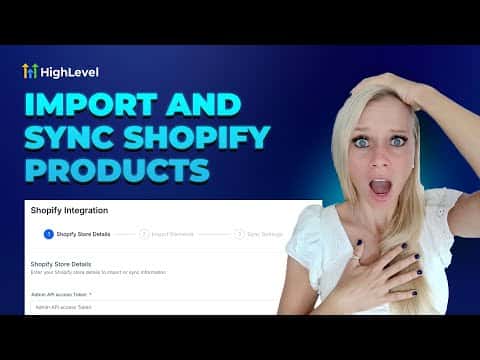
4:21概要. Migrating a Shopify store to GoHighLevel starts with creating a custom app in your Shopify admin, granting the right read scopes (orders, customers, products, inventory), and copying the API access token into GoHighLevel's Integrations settings. From there you select which data types to import and whether to enable ongoing sync for future orders. On Shopify's basic plan, only products and collections transfer. Higher Shopify plans unlock customer, order, and transaction imports.
ステップ
Create a custom app in Shopify
In your Shopify admin, go to Settings, Apps and Sales Channels, then Develop Apps. Create a new app and give it a name.
Set the required API scopes
Under Admin API scopes, enable read_orders, read_customers, read_products, read_inventory, and the two API options. Save the configuration.
Copy the access token
Install the app, then click Reveal Token once and copy the token immediately. It only shows once.
Connect the store in GoHighLevel
Go to Settings, Integrations, find Shopify, and click Connect. Paste the token and enter your Shopify store URL without the trailing slash already shown in the field.
Choose import and sync options
Select which data types to import. Enable ongoing sync so future orders and customers also flow into the CRM. Click Save, then start the import.