RocketLauncher AI

CRM, Contacts & Lead Gen

How to Use Custom Fields in GoHighLevel Dashboard Widgets

By Marnix Geerkens. Published 2025-08-29. Updated 2026-06-02.

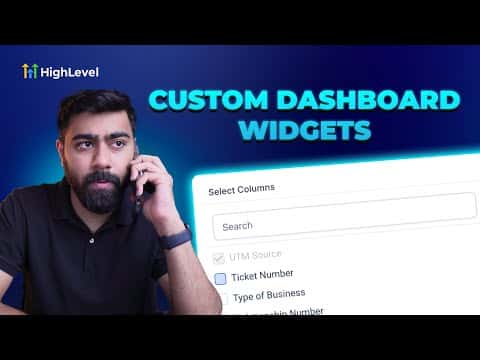
GoHighLevel dashboards support table widgets that pull in custom opportunity or contact fields as columns. This lets managers see a structured view of their data, like ticket numbers, resolution status, or any field they have defined, without exporting a report. The widget updates automatically as records change.

Watch it, then build it

Get the full platform free for 30 days

That walkthrough runs on GoHighLevel. Start it free through RocketLauncher and you get 30 days instead of the usual 14, the whole platform unlocked, plus our setup help and a community of thousands of builders in 47+ countries.

30 days, not 14Full platform, nothing held backFree community and setup help

We earn a referral commission if you keep GoHighLevel after the trial. It never changes your price.

Summary. Dashboard table widgets in GoHighLevel can display custom fields alongside standard pipeline data. After adding a table widget and selecting Opportunity Count or a similar metric, the column picker exposes both built-in fields and any custom fields you have created for opportunities or contacts. This makes it practical to build management views, support queues, or project trackers directly inside the dashboard without a separate reporting tool.

Steps

  1. Add a table widget to your dashboard

    Click Add Widget, choose the Table chart type, then select Opportunities and Opportunity Count as the data source.

  2. Select your columns

    Click Select Columns. Add the fields that matter for your view, such as opportunity name, stage, and any custom fields you have defined. Remove columns you do not need.

  3. Name and save the widget

    Give the table a descriptive name, click Apply Columns, then Save. The table appears on your dashboard and updates as opportunity data changes.


Related tutorials

Did You Know You Can Color Code Your Pipeline with Smart Tags & Opportunities in HighLevel
Did You Know You Can Color Code Your Pipeline with Smart Tags & Opportunities in HighLevel3:15 · CRM, Contacts & Lead Gen
How to Launch Your First Google Ads Search Campaign
How to Launch Your First Google Ads Search Campaign2:21 · CRM, Contacts & Lead Gen
How to Import Your Entire Shopify Store in Just a Few Clicks
How to Import Your Entire Shopify Store in Just a Few Clicks4:21 · CRM, Contacts & Lead Gen
How To Customize Group Tabs in HighLevel for Community Engagement
How To Customize Group Tabs in HighLevel for Community Engagement2:08 · CRM, Contacts & Lead Gen
How To Manage Pipeline Permissions in HighLevel
How To Manage Pipeline Permissions in HighLevel3:20 · CRM, Contacts & Lead Gen
How To Boost Your GoKollab Community Engagement Through Affiliate Programs
How To Boost Your GoKollab Community Engagement Through Affiliate Programs5:01 · CRM, Contacts & Lead Gen

Watch it, then build it

Get the full platform free for 30 days

30 days, not 14Full platform, nothing held backFree community and setup help

Frequently asked questions

Can dashboard tables show contact custom fields too?

Yes. Switch the data source to contacts and the same column picker shows contact custom fields.

Do table widgets update automatically?

Yes. They reflect the current state of your CRM data without manual refreshing.

Back to all CRM, Contacts & Lead Gen tutorials