RocketLauncher AI

CRM, Contacts & Lead Gen

How to Assign and Remove Owners on Contacts and Opportunities

By Marnix Geerkens. Published 2020-03-12. Updated 2026-06-02.

GoHighLevel lets you link a team member to any contact or opportunity as its owner, which controls who is responsible for follow-up and which conversations surface in that person's inbox. You can assign owners manually on a contact record or an opportunity card, automatically through a Zapier or Make scenario, through campaign settings, or by using workflow triggers to remove the assigned user when a deal reaches a certain stage.

Watch it, then build it

Get the full platform free for 30 days

That walkthrough runs on GoHighLevel. Start it free through RocketLauncher and you get 30 days instead of the usual 14, the whole platform unlocked, plus our setup help and a community of thousands of builders in 47+ countries.

30 days, not 14Full platform, nothing held backFree community and setup help

We earn a referral commission if you keep GoHighLevel after the trial. It never changes your price.

Summary. Ownership assignment in GoHighLevel connects a contact or opportunity to a specific team member. This tutorial covers every method for setting and clearing that assignment: clicking directly on a contact, opening an opportunity card, using a third-party automation tool, configuring campaign-level defaults, and removing owners automatically through workflow triggers.

What you will learn

  • Manually assign a user to a contact from the contact record
  • Assign an owner to an opportunity by opening the opportunity card
  • Auto-assign owners through Zapier or Make when creating opportunities
  • Set a default owner at the campaign level so every new contact is pre-assigned
  • Remove an assigned user automatically using a workflow trigger

Steps

  1. Assign a user from the contact record

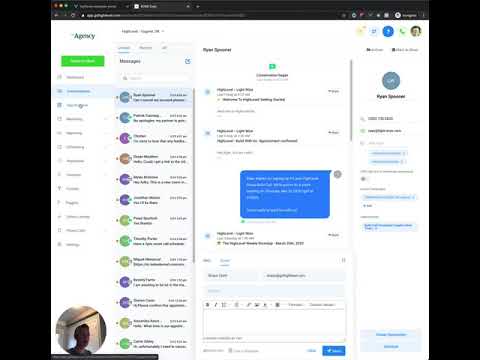
    Go to Contacts, open a contact, and click Assign To at the top of the record. Select any user in your sub-account. That user becomes the contact's owner immediately.

  2. Assign an owner from the opportunity card

    In the pipeline view, click anywhere on an opportunity card except on the contact's name link. The opportunity card opens. Find the Assigned To or Owner field and select a team member. Their initials or photo will appear on the card in the pipeline view.

  3. Auto-assign through a third-party automation

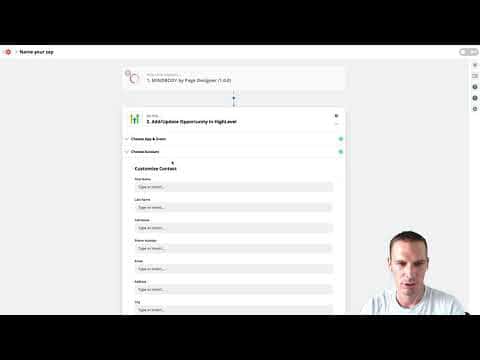
    When using a tool like Zapier with the GoHighLevel Add/Update Opportunity action, you will see an Assign to User field. Select the team member there and every opportunity created through that automation will be pre-assigned to them.

  4. Set a campaign-level default owner

    Open Marketing, go to Campaigns, open a campaign, and go to Campaign Configuration. Add a user in the owner field. Any contact who enters that campaign will automatically be assigned to that user.

  5. Remove an owner with a workflow trigger

    In a workflow, add a trigger based on a pipeline stage change. Set the action to Remove Assigned User. When a deal moves to that stage, the system clears the owner automatically, which is useful for handoff points or closed-lost stages.

Tips

  • Click outside the contact name in the pipeline card to open the opportunity card. Clicking the name takes you to the contact record instead.
  • Combining campaign-level assignment with remove-owner triggers lets you build clean handoff automations without manual steps.
Related tutorials

Add multiple opportunities for the same contact to the same pipeline!
Add multiple opportunities for the same contact to the same pipeline!2:53 · CRM, Contacts & Lead Gen
How To Edit or Delete Custom Fields
How To Edit or Delete Custom Fields3:07 · CRM, Contacts & Lead Gen
How to Get Started with Smart Lists in HighLevel
How to Get Started with Smart Lists in HighLevel4:09 · CRM, Contacts & Lead Gen
Custom Values Overview
Custom Values Overview10:00 · CRM, Contacts & Lead Gen
How to Import Contacts and Opportunities Using a CSV File
How to Import Contacts and Opportunities Using a CSV File3:52 · CRM, Contacts & Lead Gen
Send Contacts From HighLevel To Google Sheets With Webhooks
Send Contacts From HighLevel To Google Sheets With Webhooks6:08 · CRM, Contacts & Lead Gen

Watch it, then build it

Get the full platform free for 30 days

30 days, not 14Full platform, nothing held backFree community and setup help

Frequently asked questions

Can a contact have a different owner than its opportunity?

Yes. Contact ownership and opportunity ownership are tracked separately.

Does assigning an owner notify that team member?

Only if you have a notification workflow set up for that event.

Can I assign to a round-robin across multiple team members?

Yes. GoHighLevel has a Round Robin assignment option available in certain workflow actions.

What does removing the assigned user do to the contact?

The contact becomes unassigned. It will not appear in any team member's personal view until reassigned.

Back to all CRM, Contacts & Lead Gen tutorials