CRM, Contacts & Lead Gen
Add Multiple Opportunities for the Same Contact to One Pipeline
By Marnix Geerkens. Published 2020-03-25. Updated 2026-06-02.
By default GoHighLevel prevents you from adding a contact to the same pipeline more than once, which makes sense for most businesses but not for those with repeat clients. Turning on the 'Allow Duplicate Opportunity' setting removes that restriction. Once enabled, you can manually add the same contact to a pipeline again, and you can configure workflow triggers to force-create a new opportunity even when one already exists.
Watch it, then build it
Get the full platform free for 30 days
That walkthrough runs on GoHighLevel. Start it free through RocketLauncher and you get 30 days instead of the usual 14, the whole platform unlocked, plus our setup help and a community of thousands of builders in 47+ countries.
30 days, not 14Full platform, nothing held backFree community and setup help
We earn a referral commission if you keep GoHighLevel after the trial. It never changes your price.
Summary. GoHighLevel added a setting that lets repeat-business accounts place the same contact in the same pipeline multiple times. This tutorial shows where to enable the setting, how to manually add a duplicate opportunity, and how to configure the workflow trigger that handles this automatically.
What you will learn
- Enable duplicate opportunities in sub-account Settings
- Manually add the same contact to a pipeline a second time
- Use the Force Create Opportunity option in workflow triggers
- Know when this feature is relevant (repeat clients, recurring services)
Steps
Enable Allow Duplicate Opportunity in Settings
Go to Settings inside your sub-account and scroll to find the Allow Duplicate Opportunity toggle. Turn it on. This unlocks the ability to add the same contact to the same pipeline more than once.
Add a duplicate opportunity manually
Open the Opportunities pipeline view and click New. Search for the contact by name or email. Even if they already appear in the pipeline, GoHighLevel will now allow you to add them again. Fill in the opportunity name and click Add.
Configure the workflow trigger for automatic duplicate creation
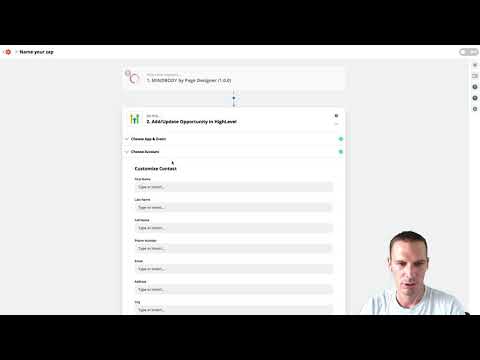
In a workflow, use the Add/Update Opportunity action. You will see a Force Create Opportunity toggle. Turn it on. When this is active, the workflow will always create a fresh opportunity for the contact rather than updating the existing one.
Tips
- This feature is most useful for service businesses where a client comes back for a new project or purchase cycle.
- Both the pipeline card and the contact profile will show the same person appearing in multiple cards, which is expected behavior.
Related tutorials
Watch it, then build it
Get the full platform free for 30 days
30 days, not 14Full platform, nothing held backFree community and setup help
Frequently asked questions
Where is the Allow Duplicate Opportunity setting?
Inside your sub-account under Settings, near the pipeline configuration options.
Will both opportunity cards link to the same contact record?
Yes. Both cards point to the same underlying contact.
What does Force Create Opportunity do in a workflow?
It creates a new opportunity even when the contact already exists in that pipeline.
Can I turn this setting off after enabling it?
Yes. Disabling it prevents new duplicates but does not remove existing duplicate cards.