RocketLauncher AI

CRM, Contacts & Lead Gen

How to Get Started with Smart Lists in GoHighLevel

By Marnix Geerkens. Published 2025-05-16. Updated 2026-06-02.

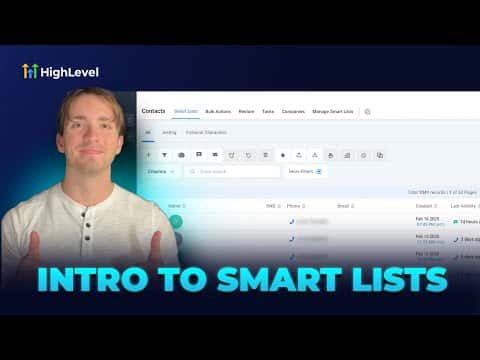
Smart Lists are saved contact filters inside GoHighLevel's CRM. Instead of re-applying the same search criteria every time you need a specific group of contacts, you build the filter once, save it as a named list, and access it from the Contacts tab with one click. You can also customize which columns appear in each list, share lists with other users, and reorder the tabs to put the most important lists first.

Watch it, then build it

Get the full platform free for 30 days

That walkthrough runs on GoHighLevel. Start it free through RocketLauncher and you get 30 days instead of the usual 14, the whole platform unlocked, plus our setup help and a community of thousands of builders in 47+ countries.

30 days, not 14Full platform, nothing held backFree community and setup help

We earn a referral commission if you keep GoHighLevel after the trial. It never changes your price.

Summary. GoHighLevel's Smart Lists turn your contact filters into persistent, reusable views. This tutorial covers how to use the columns feature to show the data that matters, how to build and apply filters to narrow down your contact base, and how to save, reorder, and share those filtered views so your whole team works from the same segmented lists.

What you will learn

  • Understand what Smart Lists are and why they save time
  • Choose which columns appear in a contact list view
  • Apply filters to show specific subsets of contacts
  • Save a filtered view as a named Smart List
  • Reorder Smart List tabs to prioritize the most used lists
  • Copy and share Smart Lists with other users in the account

Steps

  1. Open the Contacts section and find Smart Lists

    In your sub-account, go to Contacts. Smart Lists is the default tab. You will see all contacts unless a filter is already active.

  2. Customize your columns

    Click the Columns button to choose which data points appear in the list. Uncheck phone if you do not need it, or add business name, birthday, or city. Changes apply immediately and you can adjust them per Smart List.

  3. Apply a filter

    Click More Filters on the right side. Choose any field as a criterion. For example, set Email 'is not empty' to see only contacts with an email address. Click Apply to update the list.

  4. Save the filter as a Smart List

    With a filter active, click Save as Smart List. Give the list a clear name (for example, 'Email Not Empty' or 'Postcards List'). Click Save. The list now appears as a tab in the Contacts section.

  5. Use the Smart List for bulk actions

    Click a Smart List tab and select all visible contacts. From there you can send a broadcast email, assign them to a workflow, or tag them, without needing to re-filter every time.

  6. Manage and reorder Smart Lists

    Click Manage Smart Lists to see all saved lists. Drag them into the order you prefer. The tab order in the Contacts section updates to match. You can also copy any Smart List to create a variation of it.

Tips

  • Build a Smart List for contacts missing a phone number and another for missing an email so you can clean your data in targeted batches.
  • Copied Smart Lists keep the same filter settings, which makes it easy to create slight variations without starting from scratch.
Related tutorials

Custom Values Overview
Custom Values Overview10:00 · CRM, Contacts & Lead Gen
How To Edit or Delete Custom Fields
How To Edit or Delete Custom Fields3:07 · CRM, Contacts & Lead Gen
How to Import Contacts and Opportunities Using a CSV File
How to Import Contacts and Opportunities Using a CSV File3:52 · CRM, Contacts & Lead Gen
Send Contacts From HighLevel To Google Sheets With Webhooks
Send Contacts From HighLevel To Google Sheets With Webhooks6:08 · CRM, Contacts & Lead Gen
How To Assign And Remove Owners To Contacts And Opportunities In HighLevel
How To Assign And Remove Owners To Contacts And Opportunities In HighLevel3:04 · CRM, Contacts & Lead Gen
How To Export Contacts
How To Export Contacts2:13 · CRM, Contacts & Lead Gen

Watch it, then build it

Get the full platform free for 30 days

30 days, not 14Full platform, nothing held backFree community and setup help

Frequently asked questions

Can I share a Smart List with another team member?

Yes. Shared Smart Lists appear as tabs for all users in the sub-account.

Do Smart Lists update automatically when contacts change?

Yes. The list always reflects the current state of your contacts based on the saved filter.

Can I delete a Smart List?

Yes. Open Manage Smart Lists, find the list, and delete it. Your contacts are not affected.

Is there a limit to how many Smart Lists I can create?

GoHighLevel does not publish a specific cap. Keep the number manageable for your team.

Can I combine multiple filter conditions in one Smart List?

Yes. Add as many filter conditions as needed before saving.

Back to all CRM, Contacts & Lead Gen tutorials