RocketLauncher AI

Workflows & Automation

How to Send Conversions to Facebook's Conversions API Using GoHighLevel Workflows

By Marnix Geerkens. Published 2023-11-01. Updated 2026-06-02.

GoHighLevel can send conversion events back to Facebook's Conversions API so your ad campaigns receive accurate sales signals, even when browser-side tracking fails. Two workflows handle this: the first creates an opportunity when a Facebook lead form is submitted, and the second fires the conversion event when that opportunity moves to a closed-won stage in your pipeline.

Watch it, then build it

Get the full platform free for 30 days

That walkthrough runs on GoHighLevel. Start it free through RocketLauncher and you get 30 days instead of the usual 14, the whole platform unlocked, plus our setup help and a community of thousands of builders in 47+ countries.

30 days, not 14Full platform, nothing held backFree community and setup help

We earn a referral commission if you keep GoHighLevel after the trial. It never changes your price.

Summary. This tutorial walks through connecting GoHighLevel to Facebook's Conversions API via LeadConnector to improve ad targeting and reduce cost per lead. It covers creating a pixel in Facebook Events Manager, mapping form fields in GoHighLevel integrations, and building the two workflows that work together to pass conversion data back to Facebook when a deal closes.

What you will learn

  • Create a Facebook pixel connected to GoHighLevel via the LeadConnector partner integration
  • Map Facebook lead form fields to GoHighLevel contact fields for accurate data sync
  • Build a workflow that creates or updates an opportunity when a Facebook lead form is submitted
  • Build a second workflow that fires a Conversions API event when an opportunity is marked as won
  • Understand why closing the feedback loop to Facebook improves lead quality and reduces costs

Steps

  1. Create a pixel in Facebook Events Manager

    Go to business.facebook.com, open All Tools, then Events Manager. Click Connect Data Source, choose CRM, and proceed. Name the new pixel and continue.

  2. Connect via LeadConnector

    In the partner connection step, search for 'LeadConnector' and select it. Before clicking 'Go to Partner', you need to complete the GoHighLevel side first.

  3. Map form fields in GoHighLevel

    In your GoHighLevel sub-account, go to Settings, then Integrations. Connect your Facebook ad account if not already done. Open 'Facebook Form Field Mapping' and verify that your form fields match the correct contact fields. Click Update to save.

  4. Build Workflow 1: Create opportunity on lead form submission

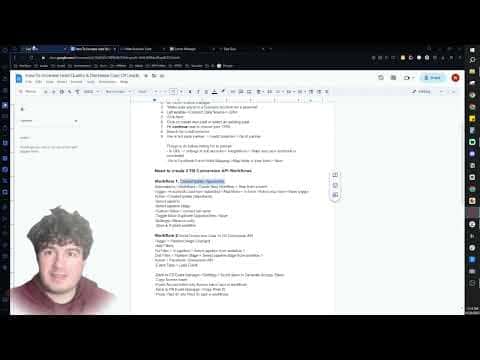
    Create a new workflow. Set the trigger to 'Facebook Lead Form Submitted', optionally filtering by a specific form. Add a 'Create/Update Opportunity' action, select your pipeline and stage, set the opportunity name to the contact's full name using a custom value, assign a lead value if relevant, and set status to Open. Enable Allow Re-entry in Settings and publish.

  5. Build Workflow 2: Send conversion when opportunity closes

    Create a second workflow. Set the trigger to 'Pipeline Stage Changed'. Add filters for your specific pipeline and for the stage that represents a closed deal. Add the 'Send Conversion to Facebook Conversions API' action and configure the event type. Publish the workflow.

  6. Test the full path

    Submit a test lead through your Facebook lead form. Confirm the opportunity appears in the correct pipeline stage. Then move it to the closed-won stage and verify the conversion event fires in Facebook Events Manager.

Tips

  • Set Allow Re-entry on Workflow 1 so repeat leads from the same contact do not get skipped.
  • Assigning a realistic lead value in the opportunity helps Facebook optimize ad delivery for higher-value prospects.
  • Facebook Events Manager shows a real-time event test tool so you can confirm conversions are arriving before spending ad budget.
Related tutorials

How To Set Up And Trigger Off Of The HighLevel Chat Widget
How To Set Up And Trigger Off Of The HighLevel Chat Widget5:08 · Workflows & Automation
How to Use the Facebook & Instagram Comment and DM Automation Workflow Trigger and Action
How to Use the Facebook & Instagram Comment and DM Automation Workflow Trigger and Action11:21 · Workflows & Automation
Did You Know You can Create Automated Facebook Messenger Responses?
Did You Know You can Create Automated Facebook Messenger Responses?2:25 · Workflows & Automation
How To Build Reminder Campaigns for Ongoing Events & Webinars in HighLevel
How To Build Reminder Campaigns for Ongoing Events & Webinars in HighLevel9:49 · Workflows & Automation
How to Create Custom Automated Client Reports in GoHighLevel
How to Create Custom Automated Client Reports in GoHighLevel7:30 · Workflows & Automation
How To Use Event Start Date Step In Workflows
How To Use Event Start Date Step In Workflows4:40 · Workflows & Automation

Watch it, then build it

Get the full platform free for 30 days

30 days, not 14Full platform, nothing held backFree community and setup help

Frequently asked questions

Why use the Conversions API instead of just the Facebook Pixel?

Browser pixels miss conversions blocked by ad blockers or iOS privacy changes. The API sends server-side data Facebook's pixel cannot capture.

Do I need two separate workflows for this to work?

Yes. One captures the lead, one fires the conversion event when the deal closes, keeping the logic clean and auditable.

What does Allow Re-entry do on the first workflow?

It lets the same contact trigger the workflow again if they submit another lead form in the future.

Can I assign different lead values for different ad campaigns?

Yes. Add filters on the Pipeline Stage Changed trigger to separate campaigns and set different values per workflow.

Back to all Workflows & Automation tutorials