 11:21
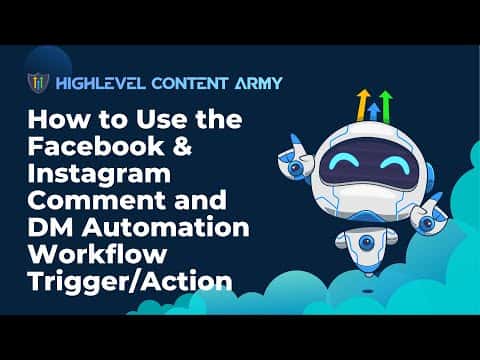
11:21Summary. This tutorial explains how to set up GoHighLevel workflows that fire from Facebook and Instagram comments, capturing leads and sending automated replies without manual effort. It covers connecting your accounts, using the pre-built recipe for a fast start, the difference between 'contains phrase' and 'exact match' keyword filters, and how to use the interactive messenger action to reply via DM or comment. AI-powered custom responses using GPT are also covered for more nuanced conversations.
What you will learn
- Connect a Facebook Business Page and linked Instagram account to your GoHighLevel sub-account
- Use the pre-built Facebook Comment Automation recipe to start faster
- Filter comment triggers by specific post or let them fire across all posts
- Understand the difference between 'contains phrase' and 'exact match' keyword filters
- Send automated DM replies or comment replies using the Interactive Messenger action
- Add interactive buttons and quick replies to guide contacts through a flow
Steps
Connect Facebook and Instagram
Go to Settings, then Integrations in your sub-account. Find the Facebook and Instagram section and click Connect. Select the Facebook Business Page that has your Instagram account linked to it. Verify the link at business.facebook.com if needed.
Start from the recipe (optional)
In Automations, open a new workflow and click the Recipe button. Select 'Facebook Comment Automation' to load a pre-built starting point with the trigger and action already placed.
Add the comment trigger
Click 'Add New Trigger', scroll to the Facebook and Instagram Events section, and select either 'Facebook Comment on a Post' or the Instagram equivalent. Choose your page from the dropdown.
Select a post or target all posts
Use the 'Specific Post' selector to target one post, or delete that filter to let the trigger fire on any post you publish. Targeting a specific post works well for giveaways or lead magnets.
Add a keyword filter
Add a filter and choose 'Contains Phrase' if you want partial matches (someone typing your keyword plus other words still qualifies) or 'Exact Match' if you need a precise word only. For most lead-generation use cases, 'Contains Phrase' is more forgiving and effective.
Add the Interactive Messenger action
Add a Facebook Interactive Messenger or Instagram Interactive Messenger action. Set the Reply Type to 'Reply to DM' to send a private message, or 'Reply to Comment' to respond publicly in the comments.
Customize the message and add buttons
Write your message in the action body. Use custom value tags to pull in the contact's name. Add interactive buttons at the bottom to let users click to visit a website, call a number, or trigger additional workflow steps.
Tips
- Use 'Contains Phrase' rather than 'Exact Match' if your audience is likely to type your keyword alongside other words or punctuation.
- Test your trigger with a real comment on a test post before using it on a live promotion.
- A GPT action placed before the messenger action can generate a personalized reply based on what the commenter actually wrote.