RocketLauncher AI

AI & Voice Agents

How to Enable Human Handover in GoHighLevel Conversation AI

By Marnix Geerkens. Published 2026-05-22. Updated 2026-06-02.

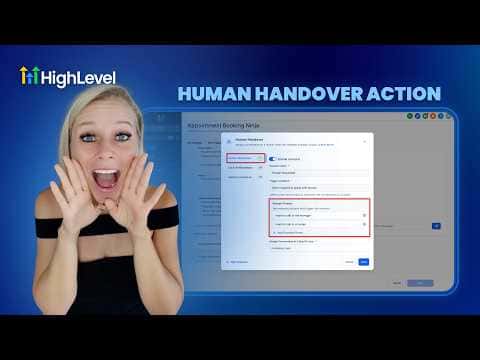
GoHighLevel Conversation AI can hand a conversation to a human when the bot gets stuck, the contact asks to speak with someone, or an issue goes unresolved. Three pre-built scenarios cover these situations, each configurable with a trigger condition, assigned team member, final message from the bot, reactivation timer, optional task creation, and contact tags. You can also write custom escalation scenarios beyond the three defaults.

Watch it, then build it

Get the full platform free for 30 days

That walkthrough runs on GoHighLevel. Start it free through RocketLauncher and you get 30 days instead of the usual 14, the whole platform unlocked, plus our setup help and a community of thousands of builders in 47+ countries.

30 days, not 14Full platform, nothing held backFree community and setup help

We earn a referral commission if you keep GoHighLevel after the trial. It never changes your price.

Summary. GoHighLevel's human handover action inside Conversation AI bot goals lets you define exactly when and how a chat transfers to a real team member. Each scenario includes example trigger phrases, a user assignment, a closing message from the bot, a timer for when the bot resumes, and optional task and tag actions. Up to three pre-built scenarios plus custom ones can be active at once.

Steps

  1. Open the bot's goals in Conversation AI

    Go to AI Agents on the left, click Conversation AI, select Agent List, choose your agent, then click Bot Goals and scroll to the Human Handover Action.

  2. Enable a handover scenario

    Toggle on Human Requested, Lack of Information, or Failed to Resolve the Issue. Each scenario can be turned on independently.

  3. Configure the scenario details

    For each active scenario, assign a user, edit the final bot message, set the reactivation time, and optionally create a task and add a contact tag.

  4. Set up user notifications

    In Settings, configure how the assigned user is notified when a conversation lands in their queue: in-app, email, or SMS.
Want the full picture? Read more about GoHighLevel Voice AI and GoHighLevel AI agents.

Related tutorials

How to use the Router Tool in HighLevel's Agent Studio for AI and Conditional Routing
How to use the Router Tool in HighLevel's Agent Studio for AI and Conditional Routing7:19 · AI & Voice Agents
How To Configure AI Bot Response Styles in HighLevel
How To Configure AI Bot Response Styles in HighLevel3:14 · AI & Voice Agents
How To Invoke AI Agents in HighLevel Workflows
How To Invoke AI Agents in HighLevel Workflows5:02 · AI & Voice Agents
Did You Know You Can Build a Full Landing Page From One Prompt in AI Studio?
Did You Know You Can Build a Full Landing Page From One Prompt in AI Studio?1:12 · AI & Voice Agents
How To Leverage Conversation AI to Read and Respond to Images and Files in HighLevel Live Chat
How To Leverage Conversation AI to Read and Respond to Images and Files in HighLevel Live Chat2:02 · AI & Voice Agents
How To Optimize AI Agents with Variables in HighLevel
How To Optimize AI Agents with Variables in HighLevel9:15 · AI & Voice Agents

Watch it, then build it

Get the full platform free for 30 days

30 days, not 14Full platform, nothing held backFree community and setup help

Frequently asked questions

Can I add my own escalation scenarios beyond the three defaults?

Yes. A custom scenario field lets you describe any specific trigger condition.

What happens to the bot after a handover?

The bot reactivates after the time period you set, so contacts can ask follow-up questions.

What does 'skip assigning if contact has an assigned user' do?

It skips reassignment when a different team member is already linked to that contact.

Back to all AI & Voice Agents tutorials