RocketLauncher AI

AI & Voice Agents

How to Use the Router Tool in GoHighLevel Agent Studio

By Marnix Geerkens. Published 2026-05-13. Updated 2026-06-02.

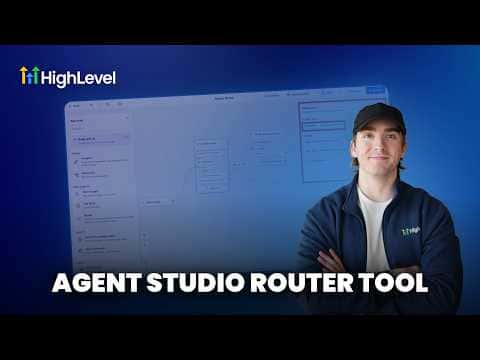
The Router tool in GoHighLevel Agent Studio directs contacts to different paths inside an AI agent workflow. Two modes are available: AI Router, which uses background prompting to decide the correct path based on conversation context, and Conditional Router, which follows explicit if/and/or logic you define. Routers are limited to one per AI agent node but can appear multiple times on sequential nodes.

Watch it, then build it

Get the full platform free for 30 days

That walkthrough runs on GoHighLevel. Start it free through RocketLauncher and you get 30 days instead of the usual 14, the whole platform unlocked, plus our setup help and a community of thousands of builders in 47+ countries.

30 days, not 14Full platform, nothing held backFree community and setup help

We earn a referral commission if you keep GoHighLevel after the trial. It never changes your price.

Summary. GoHighLevel Agent Studio's Router tool controls which path a contact or lead follows inside a multi-step AI agent. The AI Router mode reads conversation context and routes dynamically without extra prompting, while the Conditional Router lets you define exact conditions using custom variables, time checks, or other field values. Both modes are configurable from within the router node in Agent Studio.

Steps

  1. Open your agent in Agent Studio

    Navigate to AI Agents, then Agent Studio, and open the agent you want to add routing to.

  2. Add a Router tool to the node

    Click Add Tool on the relevant node and select Router. New AI agent nodes include a router by default.

  3. Choose AI Router or Conditional Router

    Select AI Router if you want the model to decide based on prompt context. Select Conditional Router to define if/and/or logic with specific field values.
Want the full picture? Read more about GoHighLevel Voice AI and GoHighLevel AI agents.

Related tutorials

How To Configure AI Bot Response Styles in HighLevel
How To Configure AI Bot Response Styles in HighLevel3:14 · AI & Voice Agents
How To Enable Human Handover in HighLevel's Conversation AI
How To Enable Human Handover in HighLevel's Conversation AI7:11 · AI & Voice Agents
Did You Know You Can Build a Full Landing Page From One Prompt in AI Studio?
Did You Know You Can Build a Full Landing Page From One Prompt in AI Studio?1:12 · AI & Voice Agents
How To Leverage Conversation AI to Read and Respond to Images and Files in HighLevel Live Chat
How To Leverage Conversation AI to Read and Respond to Images and Files in HighLevel Live Chat2:02 · AI & Voice Agents
How To Control Conversation AI Agent Access with HighLevel Permissions
How To Control Conversation AI Agent Access with HighLevel Permissions3:11 · AI & Voice Agents
How To Invoke AI Agents in HighLevel Workflows
How To Invoke AI Agents in HighLevel Workflows5:02 · AI & Voice Agents

Watch it, then build it

Get the full platform free for 30 days

30 days, not 14Full platform, nothing held backFree community and setup help

Frequently asked questions

Can I have more than one router in a single AI agent?

One router per AI agent node. Multiple routers can appear across sequential nodes.

Does the AI Router need its own prompt to work?

No. It uses the background prompting of the surrounding step. Clear intent names in the routes help accuracy.

Does using an AI Router consume tokens?

Yes, AI Router steps use tokens. Check the help doc for current token usage details.

Back to all AI & Voice Agents tutorials