AI & Voice Agents
How to Control Conversation AI Agent Access with GoHighLevel Permissions
By Marnix Geerkens. Published 2026-05-14. Updated 2026-06-02.
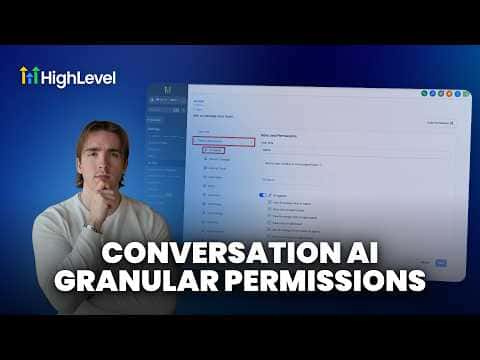
GoHighLevel lets you set granular permissions for every team member who touches your Conversation AI agents. Under Settings, My Staff, Roles and Permissions, an AI Agents section gives you separate toggles for viewing agents, editing goals, managing training, and accessing the Conversation AI dashboard. Turn off any toggle and that section disappears from the user's interface entirely.
Watch it, then build it
Get the full platform free for 30 days
That walkthrough runs on GoHighLevel. Start it free through RocketLauncher and you get 30 days instead of the usual 14, the whole platform unlocked, plus our setup help and a community of thousands of builders in 47+ countries.
30 days, not 14Full platform, nothing held backFree community and setup help
We earn a referral commission if you keep GoHighLevel after the trial. It never changes your price.
Summary. GoHighLevel's roles and permissions system includes a dedicated AI Agents section that controls exactly what each team member can see and do inside Conversation AI. View permissions let a user see a section without editing it, while manage permissions allow creating, editing, and deleting. Disabling a toggle removes the corresponding UI section for that user, so goals, training, or the dashboard can be hidden on a per-role basis.
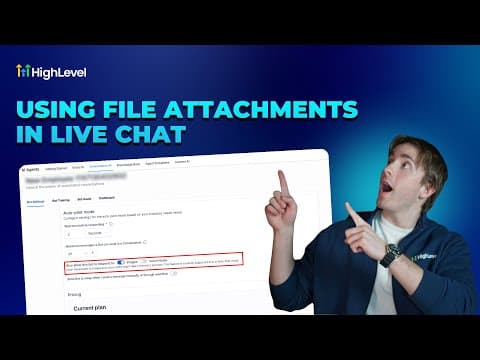
Want the full picture? Read more about GoHighLevel Voice AI and GoHighLevel AI agents.
Related tutorials
Watch it, then build it
Get the full platform free for 30 days
30 days, not 14Full platform, nothing held backFree community and setup help
Frequently asked questions
Where do I find AI agent permissions in GoHighLevel?
Go to Settings, then My Staff, then Roles and Permissions.
What is the difference between view and manage in these permissions?
View lets a user see that section. Manage lets them create, edit, and delete within it.
Can I hide bot goals for one user but keep training visible?
Yes. Each section has its own toggle, so you can mix and match per role.