AI & Voice Agents

How to Control Conversation AI Agent Access with GoHighLevel Permissions

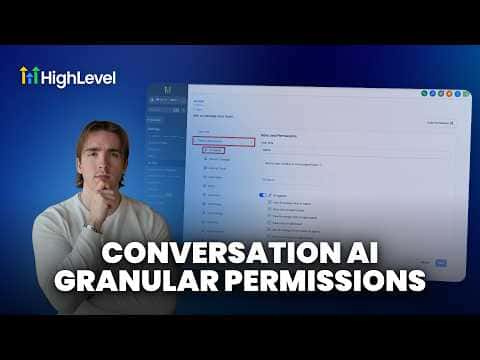
GoHighLevel lets you set granular permissions for every team member who touches your Conversation AI agents. Under Settings, My Staff, Roles and Permissions, an AI Agents section gives you separate toggles for viewing agents, editing goals, managing training, and accessing the Conversation AI dashboard. Turn off any toggle and that section disappears from the user's interface entirely.

Actualizado el 2 de junio de 2026

3:11

Resumen. GoHighLevel's roles and permissions system includes a dedicated AI Agents section that controls exactly what each team member can see and do inside Conversation AI. View permissions let a user see a section without editing it, while manage permissions allow creating, editing, and deleting. Disabling a toggle removes the corresponding UI section for that user, so goals, training, or the dashboard can be hidden on a per-role basis.

Preguntas frecuentes

Where do I find AI agent permissions in GoHighLevel?

Go to Settings, then My Staff, then Roles and Permissions.

What is the difference between view and manage in these permissions?

View lets a user see that section. Manage lets them create, edit, and delete within it.

Can I hide bot goals for one user but keep training visible?

Yes. Each section has its own toggle, so you can mix and match per role.

Constrúyelo con gente que ya lo hizo.

Únete a la comunidad gratis: llamadas en vivo cada semana, un curso para empezar y gente que construye en tu idioma.

Únete gratis en Skool