SaaS Mode & Agency
How to Create GoHighLevel Snapshots with Custom Objects
By Marnix Geerkens. Published 2025-09-30. Updated 2026-06-02.
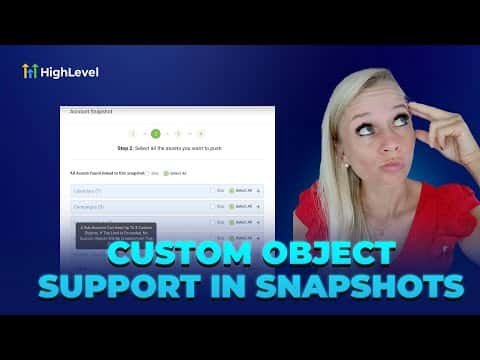
GoHighLevel snapshots can include custom objects and their associated custom fields, making it possible to copy structured data models from one sub-account to another. You select the custom objects to include during snapshot creation at the agency level. The receiving sub-account gets the object schema and any associated field relationships. The limit is three custom objects per snapshot.
Watch it, then build it
Get the full platform free for 30 days
That walkthrough runs on GoHighLevel. Start it free through RocketLauncher and you get 30 days instead of the usual 14, the whole platform unlocked, plus our setup help and a community of thousands of builders in 47+ countries.
30 days, not 14Full platform, nothing held backFree community and setup help
We earn a referral commission if you keep GoHighLevel after the trial. It never changes your price.
Summary. This tutorial explains how to build a GoHighLevel snapshot that carries custom objects and their associated custom fields into a new sub-account. It covers navigating to Account Snapshots in agency view, selecting a source sub-account, choosing custom objects from the dropdown, and then loading the snapshot into a target sub-account. A maximum of three custom objects can be included per snapshot.
Steps
Switch to Agency view and open Account Snapshots
Use the dropdown at the top to switch to Agency view, then select Account Snapshots from the left menu.
Create a new snapshot and select a source sub-account
Click Create New Snapshot, enter a name, and pick the sub-account that holds the custom objects you want to copy. Click Next.
Include custom objects
Scroll down to the Custom Objects section and click the dropdown. Select the custom objects you want to include (up to three). If your total custom objects exceed three, none will be transferred, so select carefully.
Proceed and create the snapshot
Click Proceed to finalize the snapshot. A confirmation message confirms it has been created successfully.
Load the snapshot into the target sub-account
Go to Sub Accounts, find the target sub-account, click the three dots, then Manage Client, then Load Snapshot. Search for your snapshot, select it, and click Proceed. The system checks for conflicts and notifies you when the transfer is complete.

Want the full picture? Read more about GoHighLevel SaaS Mode.
Related tutorials
Watch it, then build it
Get the full platform free for 30 days
30 days, not 14Full platform, nothing held backFree community and setup help
Frequently asked questions
How many custom objects can one GoHighLevel snapshot include?
A maximum of three. Exceeding three means no custom objects transfer at all.
Are associated custom fields included with custom objects in snapshots?
Yes. Associated custom fields and their relationships are transferred along with the object.
What happens if there are conflicts when loading the snapshot?
The system detects conflicts before proceeding and reports them so you can decide how to continue.