 3:04
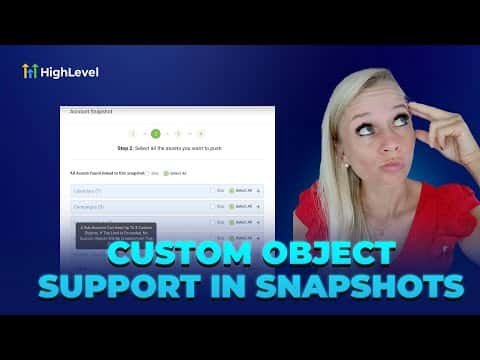
3:04概要. This tutorial explains how to build a GoHighLevel snapshot that carries custom objects and their associated custom fields into a new sub-account. It covers navigating to Account Snapshots in agency view, selecting a source sub-account, choosing custom objects from the dropdown, and then loading the snapshot into a target sub-account. A maximum of three custom objects can be included per snapshot.
ステップ
Switch to Agency view and open Account Snapshots
Use the dropdown at the top to switch to Agency view, then select Account Snapshots from the left menu.
Create a new snapshot and select a source sub-account
Click Create New Snapshot, enter a name, and pick the sub-account that holds the custom objects you want to copy. Click Next.
Include custom objects
Scroll down to the Custom Objects section and click the dropdown. Select the custom objects you want to include (up to three). If your total custom objects exceed three, none will be transferred, so select carefully.
Proceed and create the snapshot
Click Proceed to finalize the snapshot. A confirmation message confirms it has been created successfully.
Load the snapshot into the target sub-account
Go to Sub Accounts, find the target sub-account, click the three dots, then Manage Client, then Load Snapshot. Search for your snapshot, select it, and click Proceed. The system checks for conflicts and notifies you when the transfer is complete.