 1:34
1:34概要. GoHighLevel's snapshot feature allows agencies and consultants to save a complete set of assets from one sub-account and deploy them to another. This tutorial covers creating a snapshot in Agency Settings, choosing which assets to include, and loading that snapshot when setting up a new sub-account. Snapshots keep client setups consistent and cut onboarding time significantly.
ステップ
Switch to Agency view and open Account Snapshots
Click the dropdown at the top of the platform to switch to Agency view, then navigate to Account Snapshots in the left menu.
Create a new snapshot
Click Create New Snapshot, give it a name, and select the sub-account you want to copy assets from. Click Next to let the platform prepare the asset list.
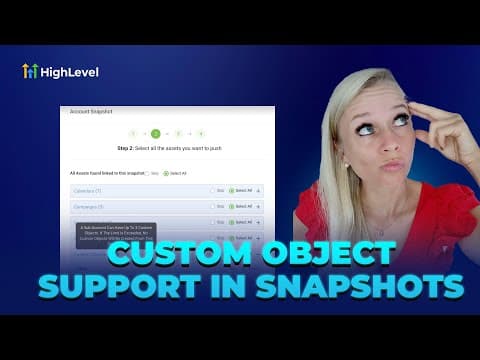
Select assets to include
Toggle on or off the specific funnels, automations, workflows, and other assets you want in the snapshot, then click Create.
Load the snapshot into a new sub-account
Go to Sub Accounts on the left. When creating a new sub-account, click the blue button in the top right, choose My Snapshots, and select the snapshot you just created. The assets are added to the new account automatically.