RocketLauncher AI

SaaS Mode & Agency

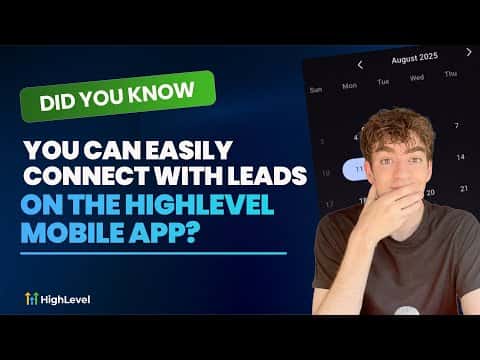
Connect with Leads on the GoHighLevel Mobile App

By Marnix Geerkens. Published 2025-08-30. Updated 2026-06-02.

The GoHighLevel mobile app lets you respond to leads, manage your calendar, and send messages across SMS, email, Instagram DMs, Facebook, and WhatsApp, all from your phone. You can switch between communication channels for the same contact in a single tap, and you can also send invoices, update pipeline opportunities, and check tasks without touching a desktop.

Watch it, then build it

Get the full platform free for 30 days

That walkthrough runs on GoHighLevel. Start it free through RocketLauncher and you get 30 days instead of the usual 14, the whole platform unlocked, plus our setup help and a community of thousands of builders in 47+ countries.

30 days, not 14Full platform, nothing held backFree community and setup help

We earn a referral commission if you keep GoHighLevel after the trial. It never changes your price.

Summary. The GoHighLevel mobile app brings lead management, multi-channel messaging, calendar control, invoicing, and pipeline updates to Android and iOS. This tutorial shows how to navigate conversations coming in from different platforms, switch between SMS, email, and social DMs for a single contact, and access additional tools like social planning, document management, and reputation tracking from the app menu.

Steps

  1. Download and sign in

    Search for GoHighLevel in the Google Play Store or Apple App Store, download the app, and sign in with your account credentials.

  2. Open and filter conversations

    Tap the notifications icon in the bottom-left corner to see recent activity, or tap the conversations icon next to it to browse all open chats from email, SMS, DMs, and WhatsApp.

  3. Switch channels within a conversation

    Open a contact's conversation thread. Tap the channel icon in the bottom-left of the message composer to toggle between the platforms that contact has used, such as SMS, Instagram, or Facebook. The message you send goes to whichever channel is selected.

  4. Send invoices, manage appointments, and update pipelines

    Tap the plus button in the message composer to access payment requests. Use the calendar icon to view, cancel, or reschedule appointments. Tap the three-line menu in the top-left to reach opportunities, invoices, tasks, reputation, documents, and more.

Want the full picture? Read more about GoHighLevel SaaS Mode.

Related tutorials

How to Create Snapshots with Custom Objects in HighLevel
How to Create Snapshots with Custom Objects in HighLevel3:04 · SaaS Mode & Agency
Did You Know You Can Monetize Your Expertise With Digital Products in HighLevel?
Did You Know You Can Monetize Your Expertise With Digital Products in HighLevel?1:01 · SaaS Mode & Agency
Did You Know You Can Monetize Courses & Content with Communities
Did You Know You Can Monetize Courses & Content with Communities1:34 · SaaS Mode & Agency
How to Implement Usage-Based Pricing in the App Marketplaces
How to Implement Usage-Based Pricing in the App Marketplaces1:47 · SaaS Mode & Agency
Did You Know You Can Clone Entire Client Setups Using HighLevel Snapshots?
Did You Know You Can Clone Entire Client Setups Using HighLevel Snapshots?1:34 · SaaS Mode & Agency
How to Enable or Disable Customers in Affiliate Management
How to Enable or Disable Customers in Affiliate Management1:38 · SaaS Mode & Agency

Watch it, then build it

Get the full platform free for 30 days

30 days, not 14Full platform, nothing held backFree community and setup help

Frequently asked questions

Which messaging channels does the GoHighLevel mobile app support?

SMS, email, Instagram DMs, Facebook messages, and WhatsApp.

Can I update pipeline stages from the mobile app?

Yes. Open Opportunities from the menu to move deals, mark them won or lost, and add notes.

Is there a branded version of the app for clients?

Yes. A gray-label version is available so clients use an app that carries your branding.

Back to all SaaS Mode & Agency tutorials