Reporting & Dashboards
How to Create Report and Dashboard Templates in GoHighLevel
By Marnix Geerkens. Published 2025-11-19. Updated 2026-06-02.
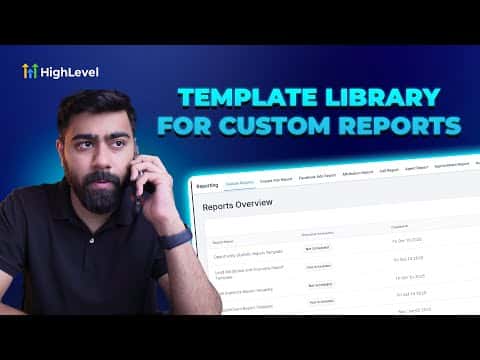
GoHighLevel lets you save a custom report or dashboard as a reusable template so you can deploy it across multiple sub-accounts without rebuilding it each time. You configure the report, set permissions so it is not private, upload it to the template library with a cover image and description, and then any sub-account can install it in a few clicks.
Watch it, then build it
Get the full platform free for 30 days
That walkthrough runs on GoHighLevel. Start it free through RocketLauncher and you get 30 days instead of the usual 14, the whole platform unlocked, plus our setup help and a community of thousands of builders in 47+ countries.
30 days, not 14Full platform, nothing held backFree community and setup help
We earn a referral commission if you keep GoHighLevel after the trial. It never changes your price.
Summary. This tutorial shows how to upload a custom GoHighLevel report as a template, covering permission settings, cover image requirements, category tags, and descriptions needed for the template library. It also demonstrates how to create a dashboard template and how clients or other sub-accounts can find and install those templates later.
Steps
Build and configure your custom report
Create the report under Reporting, Custom Reports. Set it up with any branding, metrics, and graphs you want reused. Before uploading, open Manage Permissions and make sure the report is not set to Private. Assign at least View access to agency users or account admins.
Upload as a template
Back on the custom reports list, click Upload Report Template. Give it a name, choose a category from the available options, and click Save. GoHighLevel will prompt for additional details.
Add a cover image and description
Upload a branded cover image and a preview thumbnail. Write a short description (one to two sentences) and a longer description with bullet points covering what data the report includes. Add prerequisite notes if the report requires a pipeline or custom field to be set up first.
Publish the template
Select relevant tags (contacts, appointments, lead sources, etc.), mark it as featured if you want it highlighted, and click Save, then Publish, then Confirm. The template is now available in the library.
Related tutorials
Watch it, then build it
Get the full platform free for 30 days
30 days, not 14Full platform, nothing held backFree community and setup help
Frequently asked questions
Why does GoHighLevel say my report cannot be uploaded as a template?
The report must not be set to Private. Open Manage Permissions and grant at least View access.
How does a sub-account install a report template?
Go to Custom Reports, click New Report, and choose Select from Template Library to find and install the template.
Can I create dashboard templates the same way as report templates?
Yes. The same upload process applies to dashboards inside the dashboard editor.
Can I schedule a report built from a template to send automatically?
Yes. Once installed in a sub-account, you can schedule it to send at a set frequency like weekly or monthly.