 8:03
8:03Summary. This tutorial demonstrates building a custom sales dashboard in GoHighLevel using a chiropractic practice as an example. It covers creating a new dashboard, adding and naming widgets for contacts, appointments, and pipeline value, applying filters with tags or conditions to segment data, using the Date Range Override to control reporting periods, and embedding external content like Google Sheets directly into the dashboard.
What you will learn
- Understand which GoHighLevel plan unlocks custom dashboards
- Create a new dashboard and set it as private or visible to all sub-account users
- Add widgets and choose from numeric, donut, graph, and line chart types
- Filter widgets by contact tags or conditions to show only relevant data
- Use Date Range Override to display data for a custom time period
- Embed Google Sheets or other external content directly into the dashboard
Steps
Open the dashboard section
Click Dashboard in the left navigation of your sub-account. This is the default view your clients see when they log in. The blue plus icon in the top right lets you add a new dashboard.
Create a new dashboard
Click the blue icon and select Add New Dashboard. Give it a clear name that reflects its purpose, such as a business name or campaign type. Choose Private if only you should see it, or Everyone to share it with all users in the sub-account. Click Confirm.
Add your first widget
Click Add Widget. You will see filter tabs for widget type: All, Numeric, Donut, Graph, and Line. Browse or filter to find the metric you want. Click a widget to add it to the canvas.
Name and configure the widget
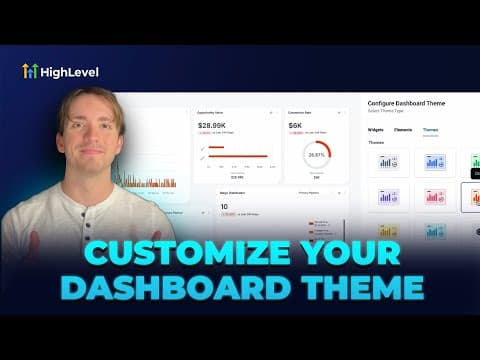
After selecting a widget, give it a descriptive title. Use the Condition section to filter the data. For example, set Tag Is to a specific tag to count only contacts with that label. This lets one sub-account hold widgets for multiple campaigns or client segments without mixing data.
Add more widgets to build the full picture
Repeat the Add Widget process for each metric you need. Common combinations include a contact count, an appointment count, a conversion rate widget, and a pipeline value widget. Drag widgets to rearrange them on the canvas.
Set a Date Range Override
Click a widget to edit it and look for Date Range Override. Enabling this pins the widget to a specific date range regardless of the dashboard-level date filter. This is useful for widgets that should always show monthly totals even when the dashboard is filtered to another period.
Embed external content if needed
Click Add Widget, go to the Objects tab, and choose Embed. Paste a URL or an iframe code to pull in external content. Google Sheets, YouTube videos, and support documentation pages all work. You can resize the embedded widget by dragging its edges.
Preview and save
Click Save to lock in the layout. To share the dashboard with a client or colleague, set the visibility to Everyone or copy the dashboard link from settings. Private dashboards are visible only to the account owner.
Tips
- Build the simplest possible dashboard first. Four to six widgets covering leads, appointments, and revenue give many clients everything they need at a glance.
- Tag-based filters are what make custom widgets powerful. Apply a consistent tagging system in your automation workflows so every widget can filter accurately.
- The $497 plan requirement applies to custom dashboards only. The default dashboard visible in all plans still shows core metrics.