Reporting & Dashboards
How to Customize Dashboard Themes in GoHighLevel
By Marnix Geerkens. Published 2025-05-16. Updated 2026-06-02.
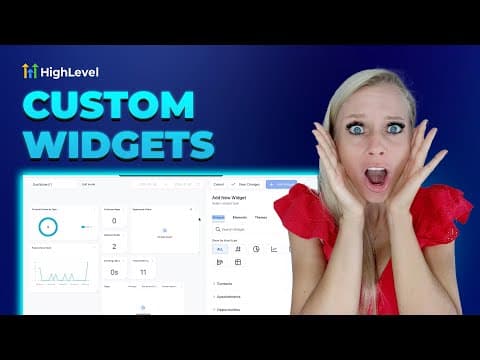
GoHighLevel lets you change the color scheme of any custom dashboard to match your agency or client branding. You can pick from built-in color presets or dial in your own hex codes for the background, widget titles, metric numbers, chart colors, and links. Changes apply immediately and save with one click.
Watch it, then build it
Get the full platform free for 30 days
That walkthrough runs on GoHighLevel. Start it free through RocketLauncher and you get 30 days instead of the usual 14, the whole platform unlocked, plus our setup help and a community of thousands of builders in 47+ countries.
30 days, not 14Full platform, nothing held backFree community and setup help
We earn a referral commission if you keep GoHighLevel after the trial. It never changes your price.
Summary. This tutorial covers changing the visual theme of a GoHighLevel dashboard, including choosing from preset color palettes and building a fully custom theme using hex codes. It walks through accessing the theme panel inside the dashboard editor and saving the final appearance.
Related tutorials
Watch it, then build it
Get the full platform free for 30 days
30 days, not 14Full platform, nothing held backFree community and setup help
Frequently asked questions
Where do I find the dashboard theme options in GoHighLevel?
Click Edit Dashboard, then Add Widget, and select the Themes tab on the right.
Can I use my own brand colors instead of the presets?
Yes. Select Custom to enter your own hex codes for each color element.
Which color elements can I customize on a dashboard?
Title text, background, metric numbers, chart colors, and link colors.