Reporting & Dashboards

How to Customize Dashboard Themes in GoHighLevel

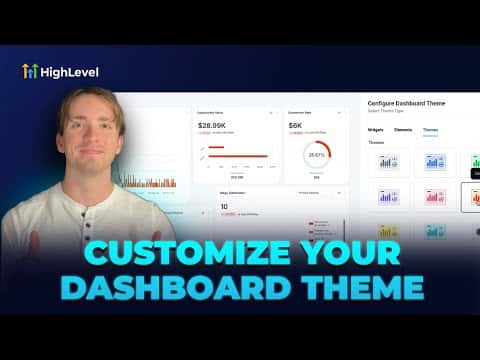
GoHighLevel lets you change the color scheme of any custom dashboard to match your agency or client branding. You can pick from built-in color presets or dial in your own hex codes for the background, widget titles, metric numbers, chart colors, and links. Changes apply immediately and save with one click.

2026年6月2日に更新

1:47

概要. This tutorial covers changing the visual theme of a GoHighLevel dashboard, including choosing from preset color palettes and building a fully custom theme using hex codes. It walks through accessing the theme panel inside the dashboard editor and saving the final appearance.

よくある質問

Where do I find the dashboard theme options in GoHighLevel?

Click Edit Dashboard, then Add Widget, and select the Themes tab on the right.

Can I use my own brand colors instead of the presets?

Yes. Select Custom to enter your own hex codes for each color element.

Which color elements can I customize on a dashboard?

Title text, background, metric numbers, chart colors, and link colors.

すでに作った人たちと、一緒に作ろう。

無料コミュニティに参加しましょう。毎週のライブ通話、最初に見るコース、あなたの言語のビルダーがいます。

Skoolに無料で参加