Getting Started & General
How to Edit Images Directly in GoHighLevel's Media Library
By Marnix Geerkens. Published 2025-11-10. Updated 2026-06-02.
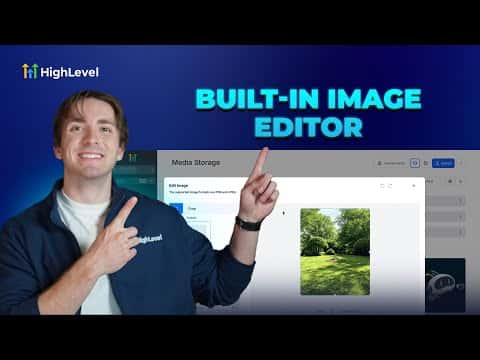
GoHighLevel's built-in image editor removes the need to open Photoshop or any external tool. From the Media Library, open any JPEG or PNG and crop it, apply a filter, adjust brightness and contrast, add text with custom fonts and colors, drop in emoji or shape stickers, or paint directly on the image. The edited version saves as a new copy so the original stays intact.
Watch it, then build it
Get the full platform free for 30 days
That walkthrough runs on GoHighLevel. Start it free through RocketLauncher and you get 30 days instead of the usual 14, the whole platform unlocked, plus our setup help and a community of thousands of builders in 47+ countries.
30 days, not 14Full platform, nothing held backFree community and setup help
We earn a referral commission if you keep GoHighLevel after the trial. It never changes your price.
Summary. The GoHighLevel Media Library includes a full image editor accessible through the three-dot menu on any image file. Editors can crop with preset aspect ratios or custom dimensions, run filters like duotone or vintage, tune brightness, contrast, saturation and blur, and layer on text boxes, stickers, or freehand drawings. Saving the result creates a named copy in the specified folder without overwriting the source file.
Steps
Open the image editor
In the Media Library, hover over any JPEG or PNG, click the three dots, and select Edit. The editor opens inside GoHighLevel.
Crop, filter, and adjust
Use the Crop tab to set an aspect ratio or custom dimensions. Switch to Filters for presets like black-and-white or warm, then Adjustments to fine-tune brightness, contrast, saturation, and blur.
Add text, stickers, or drawings
Click Text to place a text box and set font, size, alignment, and color. Click Stickers for emojis or shapes. Use the paintbrush icon to draw freehand. Adjust opacity and size for any element.
Save the edited image
Click Save, give the image a name, choose a destination folder if needed, and confirm. The edited file appears in the library ready to use in campaigns or pages.
Related tutorials
Watch it, then build it
Get the full platform free for 30 days
30 days, not 14Full platform, nothing held backFree community and setup help
Frequently asked questions
Does editing an image overwrite the original file?
No, it saves as a new copy with the name you provide.
Which file types can be edited in the Media Library?
JPEG and PNG files. Other formats like video or PDF are not editable here.
Can I undo changes before saving?
Yes, an undo and redo button are available throughout the editing session.