RocketLauncher AI

Getting Started & General

How to Create and Manage Global Custom Colors in GoHighLevel

By Marnix Geerkens. Published 2026-01-23. Updated 2026-06-02.

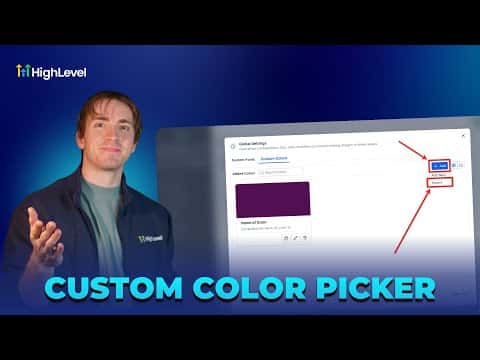
Global custom colors in GoHighLevel let you store your brand palette in one place and use those colors across funnels, webinars, and templates. Change a color once in Brand Boards and the update rolls out automatically everywhere it was applied. You can create new colors by hex or RGB, import existing colors from custom values, and organize them in a grid or list view.

Watch it, then build it

Get the full platform free for 30 days

That walkthrough runs on GoHighLevel. Start it free through RocketLauncher and you get 30 days instead of the usual 14, the whole platform unlocked, plus our setup help and a community of thousands of builders in 47+ countries.

30 days, not 14Full platform, nothing held backFree community and setup help

We earn a referral commission if you keep GoHighLevel after the trial. It never changes your price.

Summary. GoHighLevel's global custom colors feature lives inside Marketing under Brand Boards. Agencies can add colors manually using hex or RGB codes, import previously defined custom values, and filter the library by grid or list view. When a brand color changes, updating the global entry automatically refreshes every funnel, webinar, and template that references it.

Steps

  1. Open global custom colors

    Go to Marketing, then Brand Boards, and click Global Settings in the top right. Select the Colors tab.

  2. Add or import colors

    Click Add, then choose Add New to pick a color via the color picker or paste a hex code. To bring in colors already saved as custom values, click Add then Import and confirm.

  3. Use colors in your pages

    Inside a funnel or website editor, open any background or color setting and select your saved global color from the picker. Updates to that color in Brand Boards will propagate automatically.


Related tutorials

How to Set Up Uberall in HighLevel for Efficient Listings Management
How to Set Up Uberall in HighLevel for Efficient Listings Management1:50 · Getting Started & General
How To Edit Images Directly in HighLevel
How To Edit Images Directly in HighLevel3:45 · Getting Started & General
Did You Know You Can Customize the Way You Capture Leads?
Did You Know You Can Customize the Way You Capture Leads?2:05 · Getting Started & General
Did You Know You Can Build and Sell Your Expertise Directly in HighLevel?
Did You Know You Can Build and Sell Your Expertise Directly in HighLevel?2:27 · Getting Started & General
How To Build Effective AI Knowledge Bases with HighLevel
How To Build Effective AI Knowledge Bases with HighLevel4:03 · Getting Started & General
How To Use Unique Fields in HighLevel Custom Objects
How To Use Unique Fields in HighLevel Custom Objects4:41 · Getting Started & General

Watch it, then build it

Get the full platform free for 30 days

30 days, not 14Full platform, nothing held backFree community and setup help

Frequently asked questions

Can I import colors I already set up as custom values?

Yes. The import option pulls in any hex colors saved as custom values automatically.

Will changing a global color update live funnels?

Yes, every funnel or template referencing that color updates automatically.

Can I rename a global custom color after creating it?

Yes, click Edit on any color entry to update its display name.

Back to all Getting Started & General tutorials