मेन्यू
RocketLauncher

Getting Started & General

How to Create and Manage Global Custom Colors in GoHighLevel

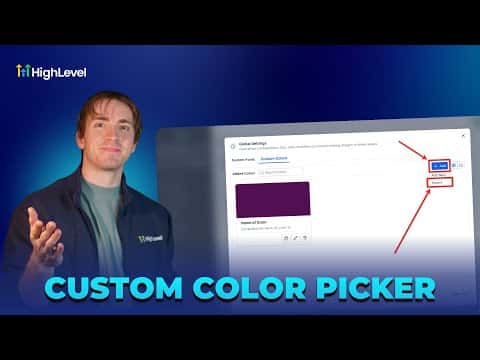
Global custom colors in GoHighLevel let you store your brand palette in one place and use those colors across funnels, webinars, and templates. Change a color once in Brand Boards and the update rolls out automatically everywhere it was applied. You can create new colors by hex or RGB, import existing colors from custom values, and organize them in a grid or list view.

अपडेट: 2 जून 2026

2:47

सारांश. GoHighLevel's global custom colors feature lives inside Marketing under Brand Boards. Agencies can add colors manually using hex or RGB codes, import previously defined custom values, and filter the library by grid or list view. When a brand color changes, updating the global entry automatically refreshes every funnel, webinar, and template that references it.

स्टेप

  1. Open global custom colors

    Go to Marketing, then Brand Boards, and click Global Settings in the top right. Select the Colors tab.

  2. Add or import colors

    Click Add, then choose Add New to pick a color via the color picker or paste a hex code. To bring in colors already saved as custom values, click Add then Import and confirm.

  3. Use colors in your pages

    Inside a funnel or website editor, open any background or color setting and select your saved global color from the picker. Updates to that color in Brand Boards will propagate automatically.


लोग जो सवाल पूछते हैं

Can I import colors I already set up as custom values?

Yes. The import option pulls in any hex colors saved as custom values automatically.

Will changing a global color update live funnels?

Yes, every funnel or template referencing that color updates automatically.

Can I rename a global custom color after creating it?

Yes, click Edit on any color entry to update its display name.

उन लोगों के साथ बनाएँ जो पहले बना चुके हैं।

फ्री कम्युनिटी से जुड़ें: हर हफ़्ते लाइव कॉल, एक स्टार्ट-हियर कोर्स और आपकी भाषा में बोलने वाले बिल्डर्स।

Skool पर फ्री जुड़ें