 3:45
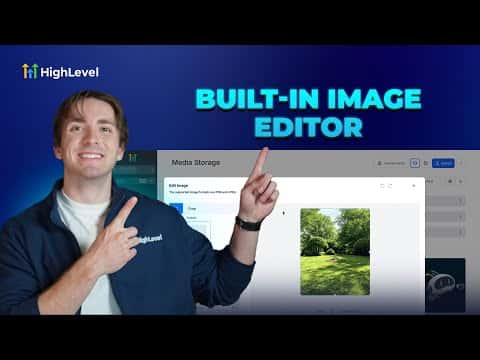
3:45सारांश. The GoHighLevel Media Library includes a full image editor accessible through the three-dot menu on any image file. Editors can crop with preset aspect ratios or custom dimensions, run filters like duotone or vintage, tune brightness, contrast, saturation and blur, and layer on text boxes, stickers, or freehand drawings. Saving the result creates a named copy in the specified folder without overwriting the source file.
स्टेप
Open the image editor
In the Media Library, hover over any JPEG or PNG, click the three dots, and select Edit. The editor opens inside GoHighLevel.
Crop, filter, and adjust
Use the Crop tab to set an aspect ratio or custom dimensions. Switch to Filters for presets like black-and-white or warm, then Adjustments to fine-tune brightness, contrast, saturation, and blur.
Add text, stickers, or drawings
Click Text to place a text box and set font, size, alignment, and color. Click Stickers for emojis or shapes. Use the paintbrush icon to draw freehand. Adjust opacity and size for any element.
Save the edited image
Click Save, give the image a name, choose a destination folder if needed, and confirm. The edited file appears in the library ready to use in campaigns or pages.