RocketLauncher AI

Getting Started & General

How to Add Taxes to Rental Listings in GoHighLevel

By Marnix Geerkens. Published 2026-04-10. Updated 2026-06-02.

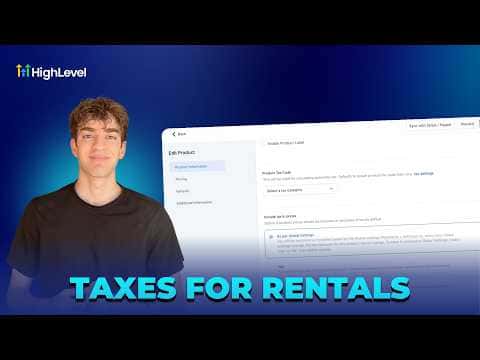
GoHighLevel lets you attach a tax rate to each rental listing so every booking automatically shows a correct itemized price including subtotal, tax, and total. Go to Calendars, then Calendar Settings, then Rentals. Open a listing's Inventory and Pricing section, configure the tax settings, attach an existing tax rate or create a new one, and save. The booking price updates instantly.

Watch it, then build it

Get the full platform free for 30 days

That walkthrough runs on GoHighLevel. Start it free through RocketLauncher and you get 30 days instead of the usual 14, the whole platform unlocked, plus our setup help and a community of thousands of builders in 47+ countries.

30 days, not 14Full platform, nothing held backFree community and setup help

We earn a referral commission if you keep GoHighLevel after the trial. It never changes your price.

Summary. Rental listings in GoHighLevel support per-listing tax configuration, making it straightforward to charge VAT, sales tax, or local hospitality taxes on property and equipment bookings. Each listing's tax settings let you choose a product tax code, decide whether tax is included in the displayed price or added on top, and attach any tax rate already defined in your Payment Settings. If no rate exists yet, a shortcut takes you to the Taxes area to create one before returning to save the listing.

Steps

  1. Open your rental listing

    In your sub-account, go to Calendars, then Calendar Settings, then Rentals. Click the pencil icon next to the listing you want to configure.

  2. Go to Inventory and Pricing

    In the listing editor, select Inventory and Pricing from the left menu, then click Configure Tax for This Listing.

  3. Set the tax options

    Choose a product tax code, then decide whether tax is included in the price (select Yes) or added separately (select No).

  4. Attach or create a tax rate

    Click Attach Tax Rates and select an existing rate. If you have not created one yet, click the plus button to go to Payment Settings and add a rate with a name and percentage. Then return, attach the new rate, and save.
Related tutorials

How To Filter Media by File Type in HighLevel
How To Filter Media by File Type in HighLevel1:22 · Getting Started & General
How To Track SLA Performance in HighLevel's CRM
How To Track SLA Performance in HighLevel's CRM3:28 · Getting Started & General
Did You Know You Can Host Paid Communities Directly in HighLevel?
Did You Know You Can Host Paid Communities Directly in HighLevel?1:57 · Getting Started & General
How To Optimize Product Media Layouts in HighLevel
How To Optimize Product Media Layouts in HighLevel2:33 · Getting Started & General
How To Set Up ACH Transfers with NMI in HighLevel
How To Set Up ACH Transfers with NMI in HighLevel2:37 · Getting Started & General
How To Track Product Margins in HighLevel for Ecommerce
How To Track Product Margins in HighLevel for Ecommerce2:33 · Getting Started & General

Watch it, then build it

Get the full platform free for 30 days

30 days, not 14Full platform, nothing held backFree community and setup help

Frequently asked questions

Can I have a different tax rate for each rental listing?

Yes. Tax is configured at the individual listing level, so each one can have its own rate.

Will the tax be visible to customers at checkout?

Yes. The booking summary shows a clear breakdown of subtotal, tax amount, and total.

Where do I create a tax rate if I do not have one yet?

Go to Payments, then Settings, then Taxes and add one there before returning to your listing.

Back to all Getting Started & General tutorials