RocketLauncher AI

Funnels & Websites

How to Use Custom Values in WordPress Sites Inside GoHighLevel

By Marnix Geerkens. Published 2026-02-06. Updated 2026-06-02.

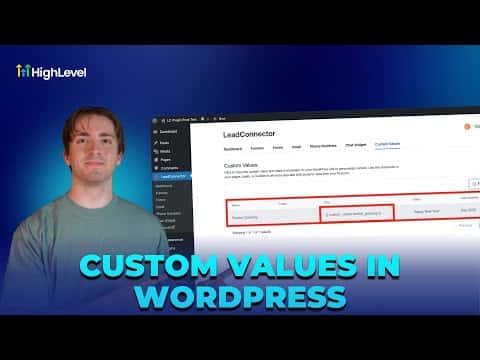
Custom values stored in GoHighLevel can be pulled directly into your WordPress site using the LeadConnector plugin. Once the plugin is connected to your sub-account, it surfaces a list of custom value shortcodes you can copy and paste into any WordPress page or post. This lets you display dynamic data, such as a running lead count, without manually updating the site.

Watch it, then build it

Get the full platform free for 30 days

That walkthrough runs on GoHighLevel. Start it free through RocketLauncher and you get 30 days instead of the usual 14, the whole platform unlocked, plus our setup help and a community of thousands of builders in 47+ countries.

30 days, not 14Full platform, nothing held backFree community and setup help

We earn a referral commission if you keep GoHighLevel after the trial. It never changes your price.

Summary. The LeadConnector WordPress plugin creates a bridge between GoHighLevel custom values and your WordPress site content. After connecting the plugin, a list of shortcodes appears in the plugin panel, one for each custom value in your account. Copy any shortcode, paste it into a WordPress page or post editor, and the page will display the live value from GoHighLevel.

Steps

  1. Access your WordPress admin

    Go to Sites, then WordPress, and click Manage on the site you want. Then click WP Admin to open the WordPress dashboard.

  2. Connect the LeadConnector plugin

    If the plugin shows as not connected, click Connect and log in to your GoHighLevel account to link the two.

  3. Copy a custom value shortcode

    Open the LeadConnector plugin panel inside WordPress. You will see a list of custom keys from your GoHighLevel account. Click Copy next to the one you want.

  4. Paste the shortcode into your page

    Open the WordPress page or post you want to update, paste the shortcode where you want the value to appear, and save. The page will render the live GoHighLevel value.


Want the full picture? Read more about the GoHighLevel funnel builder.

Related tutorials

How To Create One Click Upsells in HighLevel Funnels
How To Create One Click Upsells in HighLevel Funnels7:34 · Funnels & Websites
How to Update PHP Versions on Your WordPress Site in HighLevel
How to Update PHP Versions on Your WordPress Site in HighLevel1:30 · Funnels & Websites
How to Optimize Your Website Using Browser and IP Analytics
How to Optimize Your Website Using Browser and IP Analytics4:08 · Funnels & Websites
How to Analyze Funnel and Website Traffic by Country
How to Analyze Funnel and Website Traffic by Country2:58 · Funnels & Websites
How to Manage Files Effectively in Your Mobile Media Library
How to Manage Files Effectively in Your Mobile Media Library3:47 · Funnels & Websites
Did You Know You Can Turn an AI Draft into a Live Lead Funnel?
Did You Know You Can Turn an AI Draft into a Live Lead Funnel?2:03 · Funnels & Websites

Watch it, then build it

Get the full platform free for 30 days

30 days, not 14Full platform, nothing held backFree community and setup help

Frequently asked questions

Does the custom value update on the WordPress page automatically?

Yes. The shortcode fetches the current value from GoHighLevel each time the page loads.

Do I need the LeadConnector plugin for this to work?

Yes. The plugin is required to read GoHighLevel custom values in WordPress.

Back to all Funnels & Websites tutorials