RocketLauncher AI

Email

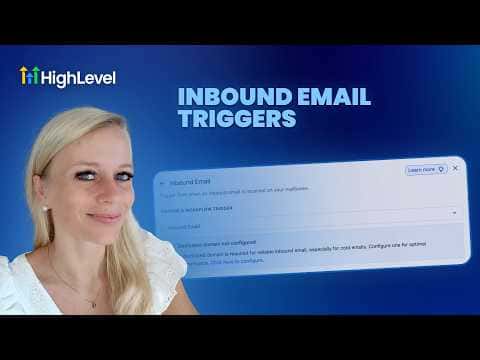
How to Use the Inbound Email Trigger in GoHighLevel Workflows

By Marnix Geerkens. Published 2026-05-07. Updated 2026-06-02.

The inbound email trigger fires a workflow whenever your GoHighLevel account receives an email, regardless of whether the sender is already in your CRM. That makes it more flexible than the customer replied trigger, which only activates on replies to emails you sent first. Use it to capture cold inquiries, route inbound conversations to the right team, and respond faster without manual sorting.

Watch it, then build it

Get the full platform free for 30 days

That walkthrough runs on GoHighLevel. Start it free through RocketLauncher and you get 30 days instead of the usual 14, the whole platform unlocked, plus our setup help and a community of thousands of builders in 47+ countries.

30 days, not 14Full platform, nothing held backFree community and setup help

We earn a referral commission if you keep GoHighLevel after the trial. It never changes your price.

Summary. GoHighLevel's inbound email trigger can pick up emails from unknown senders and existing contacts alike, including replies to previous threads. It requires a dedicated sending domain configured under Settings, Emails, and works best with LC or Mailgun. Filters let you route by destination mailbox, CC recipient, subject line keywords, or whether the sender is tagged in your CRM, and advanced settings prevent the trigger from firing repeatedly on the same conversation thread.

Steps

  1. Confirm your dedicated sending domain is set up

    Go to Settings, then Emails, and verify a dedicated domain is configured. Without this the trigger will not capture all inbound messages.

  2. Add the inbound email trigger to a workflow

    Open Automations, Workflows, open or create a workflow, click Add Trigger, and search for Inbound Email. Select it from the list.

  3. Configure filters to narrow the scope

    Add filters such as Email Sent To a specific mailbox address, subject line contains a keyword, or contact has a particular tag. Use multiple filters together to avoid unintended overlap with other workflows.

  4. Enable advanced settings to prevent duplicate fires

    Turn on the advanced setting that stops the trigger from re-firing on every reply within the same thread, so your team is only notified once per new conversation.
Related tutorials

Did You Know You Can Auto Reply to Emails with AI?
Did You Know You Can Auto Reply to Emails with AI?2:30 · Email
Did You Know One HighLevel Workflow Can Unlock 3 Better Email ROI
Did You Know One HighLevel Workflow Can Unlock 3 Better Email ROI3:11 · Email
How to Deliver Client Value through Detailed Marketing Audit Reports for Sub-Accounts
How to Deliver Client Value through Detailed Marketing Audit Reports for Sub-Accounts4:53 · Email
Did You Know You Can Build Automated Email List Segmentation to Get HIGH Open Rates?
Did You Know You Can Build Automated Email List Segmentation to Get HIGH Open Rates?8:13 · Email
How to Customize System Emails
How to Customize System Emails4:21 · Email
How To Optimize Your Email Campaigns with HighLevel s Smart Send Feature
How To Optimize Your Email Campaigns with HighLevel s Smart Send Feature2:25 · Email

Watch it, then build it

Get the full platform free for 30 days

30 days, not 14Full platform, nothing held backFree community and setup help

Frequently asked questions

How is inbound email different from the customer replied trigger?

Inbound email fires on any received email; customer replied only fires on replies to emails you sent.

Can I use the same domain CNAME across multiple sub-accounts?

No. Each sub-account needs its own subdomain to avoid capture conflicts.

What happens to my existing customer replied workflows?

They keep working. Adding the inbound email trigger does not affect them.

Back to all Email tutorials