How to Customize System Emails in GoHighLevel
By Marnix Geerkens. Published 2025-09-09. Updated 2026-06-02.
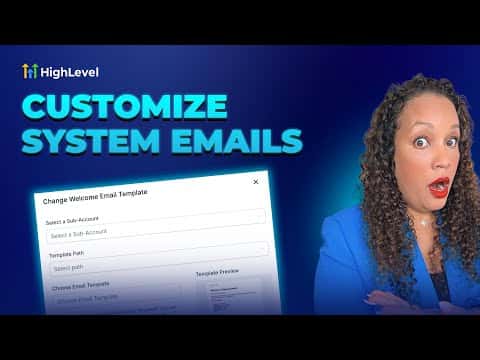
GoHighLevel sends three automatic system emails on your behalf: a welcome email when a new user is created, a reset password email, and a verification code email. By default these carry generic branding. You can replace them with fully custom templates built in the email editor, adding your logo, brand colors, and any required legal language, so every touchpoint looks like it came from your business.
Watch it, then build it
Get the full platform free for 30 days
That walkthrough runs on GoHighLevel. Start it free through RocketLauncher and you get 30 days instead of the usual 14, the whole platform unlocked, plus our setup help and a community of thousands of builders in 47+ countries.
30 days, not 14Full platform, nothing held backFree community and setup help
We earn a referral commission if you keep GoHighLevel after the trial. It never changes your price.
Summary. System email customization in GoHighLevel works through two places: the agency-level system email settings, where you can quickly swap a logo and change the call-to-action button color, and the sub-account email template editor, where you can redesign the full layout with drag-and-drop elements. Once a custom template is saved and mapped at the agency level, it replaces the default for all new users created under that account.
Steps
Navigate to system email settings at the agency level
In your agency account, go to Settings and select System Emails. Open the User Management tab to see the three email types.
Map a custom template to the email you want to change
Click the blue button next to Welcome Email (or whichever type you are changing). Select the sub-account where the template will be created and click Change.
Build the custom template in the sub-account email editor
Switch to the sub-account, go to Marketing, Emails, Templates. Click the plus button, scroll to find the system template you are replacing, open it, and edit it in the email builder. Change the logo, text, colors, and call-to-action button as needed.
Save the template and verify the mapping
Click Save Template. Return to the agency-level System Emails settings and confirm the template path now points to your new design.

Related tutorials
Watch it, then build it
Get the full platform free for 30 days
30 days, not 14Full platform, nothing held backFree community and setup help
Frequently asked questions
Which system emails can be customized in GoHighLevel?
Welcome email, reset password email, and verification code email.
Is there a quick way to update just the logo and button color?
Yes. The Settings tab inside System Emails lets you change the logo and CTA color without opening the template editor.