RocketLauncher AI

Email

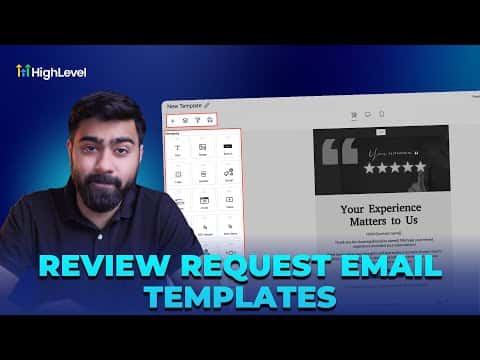
How to Use GoHighLevel Template Library for Branded Review Request Emails

By Marnix Geerkens. Published 2026-01-14. Updated 2026-06-02.

Sending review requests from a generic template makes your email look like every other automated message in the inbox. GoHighLevel's template library gives you hundreds of professionally designed starting points you can pull in and customize with your logo, wording, and review link. The result is a branded request that feels like it came from a real business, not a mass-mail tool.

Watch it, then build it

Get the full platform free for 30 days

That walkthrough runs on GoHighLevel. Start it free through RocketLauncher and you get 30 days instead of the usual 14, the whole platform unlocked, plus our setup help and a community of thousands of builders in 47+ countries.

30 days, not 14Full platform, nothing held backFree community and setup help

We earn a referral commission if you keep GoHighLevel after the trial. It never changes your price.

Summary. GoHighLevel's reputation settings let you map specific email templates to each review request attempt, including follow-up retries. Rather than building from a blank canvas, you can import any template from the built-in library, choose a category that fits your brand, and open the design directly in the email builder to make it yours. Once saved, that template is available to assign to your first request or any of the retry slots.

Steps

  1. Open reputation settings and enable email requests

    Go to Reputation, then Settings, and click Email Requests. Make sure the email request toggle is enabled.

  2. Import a template from the library

    Click Create New, then choose Import from Template Library. Browse by category, preview options, and select one to import it into the email builder.

  3. Customize the template

    Update the logo, replace the body copy with your message, and insert your review request link where needed. Save the template when done.

  4. Map the template to a request slot

    Back in Email Requests settings, select your new template for the first request and any retry slots. Save your settings.
Related tutorials

Did You Know You Can Split Test Email Subject Lines in HighLevel?
Did You Know You Can Split Test Email Subject Lines in HighLevel?1:58 · Email
How To Optimize Email Campaigns with HighLevel Smart Send
How To Optimize Email Campaigns with HighLevel Smart Send2:28 · Email
Did You Know HighLevel Can Email Leads the Second They Hit Submit?
Did You Know HighLevel Can Email Leads the Second They Hit Submit?3:58 · Email
How to Customize System Emails
How to Customize System Emails4:21 · Email
How To Use HighLevel Spacer for Perfect Email Spacing
How To Use HighLevel Spacer for Perfect Email Spacing2:39 · Email
Did You Know You Can Auto Reply to Emails with AI?
Did You Know You Can Auto Reply to Emails with AI?2:30 · Email

Watch it, then build it

Get the full platform free for 30 days

30 days, not 14Full platform, nothing held backFree community and setup help

Frequently asked questions

Can I set up multiple follow-up review request emails?

Yes. Map a different template to each retry slot to send reminders over time.

Do I have to start from scratch or can I import a design?

Import from the template library to start with a finished layout and customize it.

Back to all Email tutorials