 2:32
2:32概要. GoHighLevel's reputation settings let you map specific email templates to each review request attempt, including follow-up retries. Rather than building from a blank canvas, you can import any template from the built-in library, choose a category that fits your brand, and open the design directly in the email builder to make it yours. Once saved, that template is available to assign to your first request or any of the retry slots.
ステップ
Open reputation settings and enable email requests
Go to Reputation, then Settings, and click Email Requests. Make sure the email request toggle is enabled.
Import a template from the library
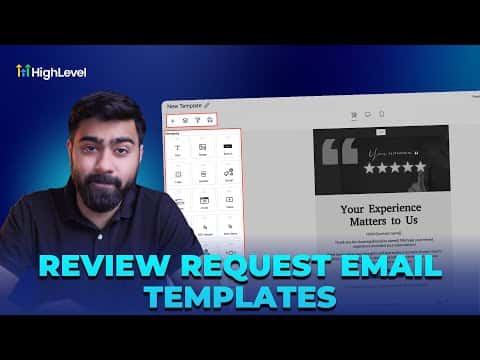
Click Create New, then choose Import from Template Library. Browse by category, preview options, and select one to import it into the email builder.
Customize the template
Update the logo, replace the body copy with your message, and insert your review request link where needed. Save the template when done.
Map the template to a request slot
Back in Email Requests settings, select your new template for the first request and any retry slots. Save your settings.