 4:21
4:21概要. System email customization in GoHighLevel works through two places: the agency-level system email settings, where you can quickly swap a logo and change the call-to-action button color, and the sub-account email template editor, where you can redesign the full layout with drag-and-drop elements. Once a custom template is saved and mapped at the agency level, it replaces the default for all new users created under that account.
ステップ
Navigate to system email settings at the agency level
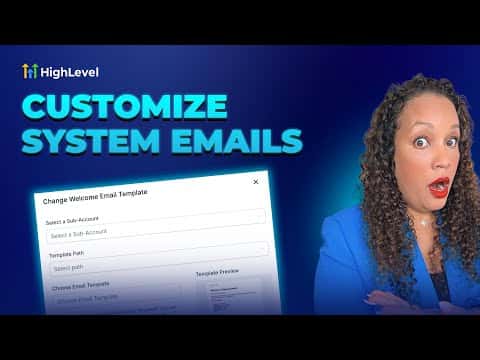
In your agency account, go to Settings and select System Emails. Open the User Management tab to see the three email types.
Map a custom template to the email you want to change
Click the blue button next to Welcome Email (or whichever type you are changing). Select the sub-account where the template will be created and click Change.
Build the custom template in the sub-account email editor
Switch to the sub-account, go to Marketing, Emails, Templates. Click the plus button, scroll to find the system template you are replacing, open it, and edit it in the email builder. Change the logo, text, colors, and call-to-action button as needed.
Save the template and verify the mapping
Click Save Template. Return to the agency-level System Emails settings and confirm the template path now points to your new design.