RocketLauncher AI

Email

Split Test Email Subject Lines in GoHighLevel to Boost Open Rates

By Marnix Geerkens. Published 2025-11-21. Updated 2026-06-02.

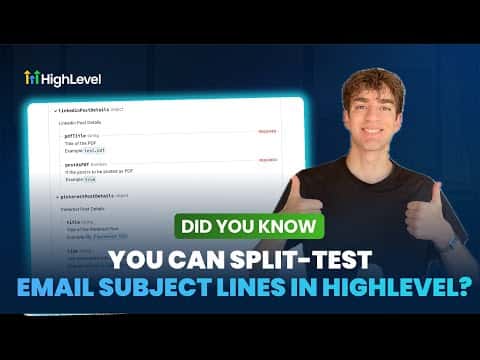
Subject lines decide whether an email gets opened or ignored, and GoHighLevel lets you test two of them against each other inside a single campaign. A portion of your list sees variant A, another portion sees variant B, and the platform automatically sends the winner to everyone else after the test window closes. You get real data from your actual audience without running a separate tool.

Watch it, then build it

Get the full platform free for 30 days

That walkthrough runs on GoHighLevel. Start it free through RocketLauncher and you get 30 days instead of the usual 14, the whole platform unlocked, plus our setup help and a community of thousands of builders in 47+ countries.

30 days, not 14Full platform, nothing held backFree community and setup help

We earn a referral commission if you keep GoHighLevel after the trial. It never changes your price.

Summary. GoHighLevel's built-in A/B testing for email campaigns works directly inside the email editor. Toggle on AB Testing, choose subject line as the test variable, write two variants, set the percentage distribution and the test duration, then schedule or send. When the test period ends, GoHighLevel tracks which subject line produced more opens and delivers that version to the remaining contacts automatically.

Steps

  1. Create or open an email campaign

    Go to Marketing, Emails, and click Create Campaign. Choose a template or start from blank to open the email editor.

  2. Enable A/B testing

    In the top left of the editor, click the AB testing button and toggle it on.

  3. Set test parameters

    Choose Email Subject as the test variable. Set the duration (8 hours is the default) and the number of variations. Enter a different subject line for each variant.

  4. Adjust the audience split and send

    Use the slider to set what percentage of your list each variant receives. The remainder goes to the winner after the test. Click Send or Schedule when ready.
Related tutorials

How To Optimize Email Campaigns with HighLevel Smart Send
How To Optimize Email Campaigns with HighLevel Smart Send2:28 · Email
How To Use HighLevel's Template Library for Branded Email Requests
How To Use HighLevel's Template Library for Branded Email Requests2:32 · Email
Did You Know HighLevel Can Email Leads the Second They Hit Submit?
Did You Know HighLevel Can Email Leads the Second They Hit Submit?3:58 · Email
How To Use HighLevel Spacer for Perfect Email Spacing
How To Use HighLevel Spacer for Perfect Email Spacing2:39 · Email
How to Customize System Emails
How to Customize System Emails4:21 · Email
How To Export Email Data in HighLevel
How To Export Email Data in HighLevel1:41 · Email

Watch it, then build it

Get the full platform free for 30 days

30 days, not 14Full platform, nothing held backFree community and setup help

Frequently asked questions

Can I test email content instead of just the subject line?

Yes. Toggle AB testing on and choose email content as the variable instead.

Where do I see which subject line won?

Open the email campaign reports after the test ends to view performance by variant.

Back to all Email tutorials