Workflows & Automation
GoHighLevel Workflow Switcher: Build Automations Faster
By Marnix Geerkens. Published 2025-11-13. Updated 2026-06-02.
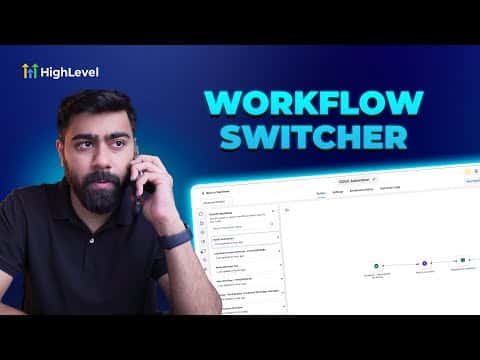
The workflow switcher in GoHighLevel's advanced builder lets you jump between recently opened workflows without going back to the main list. You can open multiple workflows side by side in separate browser windows and copy steps from one into another using standard keyboard shortcuts, which is useful when reusing branches or actions across automations.
Watch it, then build it
Get the full platform free for 30 days
That walkthrough runs on GoHighLevel. Start it free through RocketLauncher and you get 30 days instead of the usual 14, the whole platform unlocked, plus our setup help and a community of thousands of builders in 47+ countries.
30 days, not 14Full platform, nothing held backFree community and setup help
We earn a referral commission if you keep GoHighLevel after the trial. It never changes your price.
Summary. GoHighLevel's workflow switcher appears inside the advanced workflow builder and shows a history of recently accessed workflows. Pressing Shift and W opens it as a quick-launch panel where you can search by name or select from the recent list to open a workflow in a new window. With two workflows open side by side, you can select steps in one, copy them with Cmd C or Ctrl C, switch to the other, and paste directly into the canvas.

Related tutorials
Watch it, then build it
Get the full platform free for 30 days
30 days, not 14Full platform, nothing held backFree community and setup help
Frequently asked questions
Where is the workflow switcher in GoHighLevel?
Inside the advanced workflow builder, via the switcher button or the Shift and W shortcut.
Can you copy and paste actions between workflows?
Yes. Select steps, copy with Cmd C or Ctrl C, open the target workflow, and paste.
Does the workflow switcher work in the standard builder?
No. You need to be in the advanced builder to access it.